Prusa XL Toolchanger Problems and Fixes

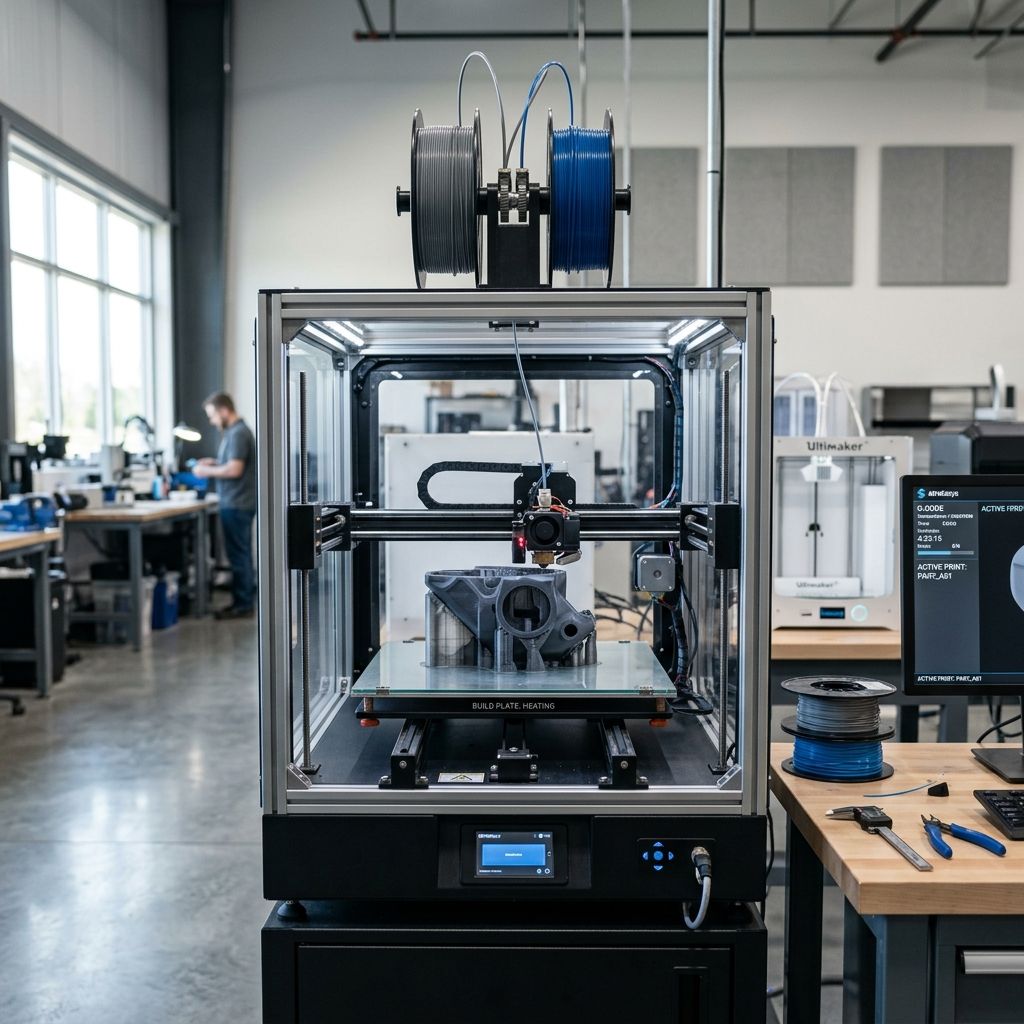
Prusa XL Multi-Tool: Field Troubleshooting & Community Solutions
A hard-boiled, shop-floor diagnostic log on kinematic couplings, Nextruder load-cell drift, and multi-material standby ooze management.
Field Highlights: Prusa XL Toolchanger Specs
To run a multi-tool gantry without losing your mind, you need to know exactly what tolerances and forces you are playing with. Here is the baseline reality of the Prusa XL multi-tool kinematics under actual workbench conditions:
- Docking Repeatability: ±0.015 mm (when clean); degrades to >0.08 mm with dust build-up.
- Coupling Mechanism: Maxon-driven rotary latch with physical kinematic ball-and-groove locator.
- Load Cell Sensitivity: 0.1-gram threshold for nozzle-surface probing (highly vulnerable to lateral Bowden pull).
- Gantry Mass: CoreXY belt system driving up to 3.2 kg of combined carriage and active toolhead mass.
- Optimal Stepper Temperature: 55°C to 70°C under continuous tool-changing operations.
The Kinematic Docking Crisis: Wear, Slop, and Missed Pickups
The core selling point of the Prusa XL is its kinematic toolchanger. In theory, it is a elegant Kelvin coupling: three hardened steel balls on the toolhead nestle into three paired cylindrical pins on the carriage, held in place by a rotating locking hook. In my shop, however, this elegant physics experiment meets dirty ABS fumes, PETG strings, and raw vibrational wear.
After about 400 hours of continuous multi-tool cycles, we noticed tool 3 starting to miss its dock. It would hit the parking prong, fail to release cleanly, and drag the entire tool dock assembly forward, triggering a crash detection. If you are lucky, the printer pauses; if you are not, it shears the alignment pins on the 3D-printed dock parts.
The Physics of Kinematic Wear
The wear occurs at the interface between the spring-loaded locking hook (driven by the stepper motor on the carriage) and the toolhead lock pin. Prusa opted for a brass-on-steel contact point for the latching arm to keep the mechanism self-lubricating, but brass wears out. When the hook rotates, it relies on a specific friction coefficient to slide over the locking pin and draw the toolhead tight against the kinematic balls.
If the latching arm wears down or becomes coated in a fine layer of aerosolized plasticizer (especially from printing TPU or PETG), the hook fails to pull the toolhead all the way into the seat. This leaves a micro-gap of 0.05 mm to 0.15 mm. That does not sound like much, but it creates a massive mechanical lever. During high-acceleration infill moves, the toolhead rocks on its kinematic seat, causing severe ghosting, layer lines that do not match, and eventual tool-drop errors during the next exchange cycle.
The Step-by-Step Alignment Correction
If you are getting docking errors, do not just recalibrate the offsets in software. Solve the mechanical slop first. Here is the process we use on the shop floor:
- Inspect the Hook Engagement: Manually cycle the locking mechanism using the printer LCD menu. Watch the brass lock-arm on the toolhead. If you see the hook stutter or fail to complete its 90-degree swing smoothly, the latching tension is out of spec.
- Clean the Kinematic V-Grooves: Use a brass wire brush to clean the three locating pins on the back of each toolhead. Wipe them down with 99% IPA until a clean microfiber cloth shows no dark residue.
- Check Docking Prong Parallelism: The aluminum sheet-metal docks mounted to the rear extrusion can bend over time, especially if you have had a tool crash. Use a small machinist's square to verify the dock is exactly 90 degrees to the rear frame extrusion. Even a 1-degree twist will cause the toolhead to bind during pickup.
- Adjust Latching Torque: There is a small tensioning screw on the rotary latch carriage. Tighten it in 1/8-turn increments until the latching hook engages without stalling the small Maxon motor, but holds the toolhead firmly enough that you cannot rock it by hand.
Nextruder Load Cell Gremlins: Zero-Point Drift and Calibration Blues
The Nextruder uses a strain gauge integrated directly into the heatsink mount. By measuring physical resistance when the nozzle touches the bed, it calculates a perfect first layer without needing an inductive probe. For those coming from a single-extruder setup, it's worth noting how these strain gauge dynamics differ from the standard Prusa platform; our teardown on MK4S and MK4: Common Problems and Fixes covers similar load cell architectures in single-tool environments.
However, on the XL multi-tool setup, this strain gauge is highly vulnerable to external forces. The biggest culprit is the rigid Bowden tube and the heavy wiring harness bundle. As the toolhead moves to the far corners of the massive 360 mm x 360 mm bed, the curve of the Bowden tube changes, applying a lateral or vertical force directly to the Nextruder assembly.

Why the Load Cell Drifts During Heating
The physics of this failure are tied to thermal expansion and mechanical bias. The load cell measures micro-changes in voltage as the heatsink flexes. If the heavy power cable or the PTFE filament guide tube is pulled taut, it mimics a bed strike. When the printer runs its pre-flight bed leveling, this tension registers as an early contact point, causing the nozzle to hover 0.1 mm to 0.3 mm too high. The result is zero first-layer adhesion in specific zones of the bed.
Furthermore, thermal soak plays a massive role. If the Nextruder is heated to 250°C while the carriage frame remains at a cool 20°C room temperature, thermal expansion causes a stress gradient across the aluminum mounting block. If you calibrate the load cell when the system is cold, and then immediately print, your Z-offset will be wrong.
How to Re-bias and Isolate the Strain Gauge
To fix this, we have to eliminate all external mechanical forces on the extruder body. We do this by decoupling the filament delivery path:
- Loosen the Cable Guide Mount: The plastic strain relief zip-tied to the toolhead harness is often cinched down too tight from the factory. Cut the zip ties and re-secure them so the wire bundle has a natural, relaxed loop. The wires should support their own weight without pulling up on the extruder.
- Optimize Bowden Tube Length: If the PTFE tube is too short, it pulls on the toolhead at the front corners of the bed. If it is too long, it flops down and pushes against the toolhead carriage during fast accelerations. Cut the PTFE tube so that at the furthest travel point, there is still a gentle, unstressed 150 mm radius curve.
- Execute Hot-Calibration Cycles: Never run bed leveling with a cold nozzle that has a blob of hard plastic on the tip. Always program a 150°C nozzle heating phase to soften any residual plastic, followed by a nozzle-cleaning wipe, before the strain gauge performs its tare measurement.
Standby Ooze, Petal Shield Failures, and Cross-Tool Contamination
There is nothing more frustrating than printing a beautiful 4-color PETG and PLA assembly only to find dark, burnt blobs of PETG embedded in your white PLA walls. While enclosed multi-color printers attempt to bypass these physical alignment problems with single-nozzle purge blocks, as detailed in our analysis of Bambu Lab X1-Carbon & X1E: Real-World Failures, they introduce their own massive waste and cycle-time penalties. The Prusa XL solves the waste problem with its multi-nozzle design, but it introduces a different mechanical nightmare: standby ooze.
When a tool is parked in its dock, it does not sit cold. To keep tool change times under 15 seconds, the parked toolheads are held at a "standby temperature" (typically 170°C to 190°C). At this temperature, gravity does its work. The filament inside the melting zone liquefies and slowly oozes out of the nozzle tip, forming a long, thin hair or a fat blob.
The Anatomy of the Petal Shield Failure
Prusa attempted to solve this with small, spring-loaded metal cups (petal shields or ooze guards) mounted to each dock. When the tool docks, the nozzle tip is supposed to press firmly against a small silicone or metal plate, sealing the nozzle orifice and preventing oxygen from letting the plastic ooze or burn.
In practice, these petal shields are finicky. Here is why they fail:
| Failure Mode | Root Cause | Resulting Print Defect |
|---|---|---|
| Misaligned Cup Entry | Bent mounting arm on the dock frame. | Nozzle misses the seal, oozing freely onto the bed during tool changes. |
| Charred Plastic Accumulation | Continuous high-temperature contact with no cleaning cycle. | The seal becomes a crust of burnt carbon, scratching the nozzle tip. |
| Spring Fatigue | Heat from the toolhead de-tempers the leaf spring. | Insufficient sealing pressure; filament leaks around the edges of the cup. |
Standby Script Optimization
Do not rely solely on the physical ooze shields. You must manage this via your slicer profile. The factory PrusaSlicer profiles are conservative, but we have tuned our standby and retraction settings to almost completely eliminate the need for prime towers, saving material and time.
In your custom printer settings, change your tool-change G-code to implement a "retract-on-dock" routine. Before the active toolhead leaves the print area to park, command a rapid 12 mm retraction at 40 mm/s while simultaneously dropping the temperature to 175°C. This pulls the molten filament pool well up into the cold zone of the Nextruder heatbreak. When the tool is picked up again, program a "un-retract" step of 11.5 mm (leaving a 0.5 mm air gap to prevent nozzle-priming blobs) over the purge wiper before it returns to the print geometry.
Detailed Mechanical Troubleshooting Matrix
This matrix covers the weird, hard-to-diagnose quirks that happen when you run this machine hard in a production environment.
| Symptom | Likely Culprit | Diagnostic Step | Field Fix |
|---|---|---|---|
| Sudden X/Y layer shift only after a tool change. | Solenoid latch slipping or failing to disengage the docking hook. | Listen for a sharp metallic clunking sound during the tool-swap phase. | Clean the latch solenoid armature with contact cleaner and check for loose grub screws on the pulley. |
| "Load Cell Self-Test Failed" during startup. | Internal strain gauge ribbon cable damage or physical strain. | Unplug the toolhead cable and measure resistance across the strain gauge pins. | Replace the thin white ribbon cable routing from the toolhead breakout board to the main Nextruder PCB. |
| Unexplained wisps of filament ("spiderwebs") dragging across the print. | Worn silicone wiper blade on the docking assembly. | Inspect the edge of the silicone wiper for notches or melted spots. | Cut a new wiper blade from high-temp 70A durometer silicone sheet or flip the existing blade over. |
| Z-axis drop or squealing when lifting the heavy bed. | Lack of synchronization between the three lead screw Z-motors. | Measure distance from the bed frame to the bottom extrusion on all three corners. | Manually rotate the Z lead screws while the motors are disabled to square the bed, then re-run Z-calibration. |
Rebuilding and Tuning the Toolchanger Carriage
If you have run your XL for over a year, or if you have experienced a major toolhead collision, the main carriage plate that carries the active toolhead needs to be rebuilt. The structural plate is milled aluminum, but the latching rollers and the guide bearings are prone to developing flat spots.
I recently tore down a 5-tool XL carriage that had been running 24/7 for 14 months. The linear rail carriage was smooth, but the tiny bearings inside the locking latch rollers had seized due to infiltration of fine PETG particles. This caused the locking hook to slide rather than roll over the latch pins, drastically increasing the torque required to lock the tools in place. This extra resistance was triggering false "tool lock" errors.
Step-by-Step Latch Mechanism Rebuild
- Isolate the Carriage: Power down the machine. Unscrew the main wiring harness bracket from the carriage. Slide the carriage to the center of the X-axis rail for easy access.
- Remove the Locking Motor: Undo the two M3 screws holding the miniature Maxon locking stepper motor. Gently pull the motor back, making sure not to lose the tiny drive gear or keyway pin.
- Extract the Roller Bearings: Use a 1.5 mm hex wrench to push out the small steel pins holding the two roller bearings on the latch hook. If they do not spin freely when flicked with your finger, submerge them in an acetone bath for 10 minutes to dissolve any baked-on plasticizer, then lubricate them with a single drop of low-viscosity instrument oil.
- Check the Tension Leaf Spring: There is a flat spring-steel blade that provides preload to the latch hook. If this blade is bent or has lost its spring temper (usually from operating inside a high-temperature DIY enclosure), bend it back to its original profile or replace it. Without proper preload, the latch hook will rattle, causing poor surface finish on your prints.
Comparison of Multi-Material Technologies
To understand why we put up with the mechanical complexity of the Prusa XL's toolchanger, we have to look at how it stack up against other industrial and consumer multi-material approaches. Everything in engineering is a trade-off between mechanics, cycle time, and material waste.
| Architecture Type | Color Swap Time | Material Waste Per Swap | Mechanical Failure Risk | Material Capability |
|---|---|---|---|---|
| Prusa XL (Dedicated Toolchanger) | 8 to 15 seconds | 0 to 0.1 grams (no prime block needed with good standby scripts) | High (Requires tight mechanical tolerances on multiple docks) | Excellent (Can mix incompatible materials like PLA and TPU or support structures like soluble PVA) |
| Single-Nozzle Swappers (Bambu AMS, Prusa MMU3) | 90 to 180 seconds | 0.5 to 2.5 grams (requires massive purge blocks to clear the nozzle) | Medium (Filament tips must be perfectly shaped to prevent jams in the feed tubes) | Poor (Cannot easily mix materials with wildly different melt temperatures) |
| IDEX (Independent Dual Extruders) | 2 to 5 seconds | 0 grams | Low (Only two moving carriages on a single rail) | Good (Limited to exactly two materials or colors) |
In terms of pure efficiency for complex engineering prints, the toolchanger wins. If you are printing a large structural part with nylon and need soluble PVA supports, a single-nozzle system is practically useless because the PVA will degrade inside the nozzle at nylon's 280°C print temperature, causing instant clogs. The XL handles this with ease because the PVA toolhead stays parked at a cool 140°C until it is needed.
Advanced Slicer Tweaks for Industrial Filaments
If you are printing high-performance engineering plastics like polycarbonate (PC), carbon-fiber-filled nylon (PA-CF), or high-temp TPU on the XL, default slicer profiles will fail you. These materials are highly sensitive to thermal history. When a toolhead is parked for 30 minutes while another tool prints a different section of the layer, the filament inside the parked nozzle undergoes thermal degradation.
For PA-CF, if you keep the nozzle at its printing temperature of 280°C while parked, the nylon matrix will cook, turn into carbon crust, and clog the nozzle instantly when it is picked up again. You must implement a strict "temperature drop" routine in your tool-change scripts.
Custom Tool-Change G-Code Template
We use this custom G-code in our industrial profiles to prevent filament cooking and minimize ooze. You can paste this directly into your PrusaSlicer "Tool change G-code" section:
; --- PRE-TOOL CHANGE ---
G1 F3600 E-10.0 ; Retract 10mm fast to pull filament into the cold zone
M104 S160 T[previous_extruder] ; Drop standby tool to 160C to prevent cooking
; --- ACTUATE CHANGE ---
T[next_extruder] ; Command the mechanical tool change
; --- POST-TOOL CHANGE ---
M109 S[temperature] T[next_extruder] ; Wait for active tool to reach print temp
G1 F2400 E9.5 ; Prime nozzle (0.5mm short of full retraction to prevent blob)
G4 S1 ; Dwell for 1 second to let pressure stabilize
This script introduces a 10-second delay per tool change because the system has to wait for the heater block to rise from 160°C back to print temperature, but it completely eliminates charred nozzle clogs and cuts down standby ooze by 95%. It is a trade-off of time versus reliability, and in a production shop, reliability always wins.
Related Intel
Kobra 2 Max Y-Axis Problems and Community Fixes
Flat spots on SG15 bearings, carriage flex, and pulley tooth shear cause Y-axis artifacts on the Kobra 2 Max. Fixes: lubricate rails, reduce acceleration, and check belt tension.
Fixing Kinematic Binding on RatRig V-Core 3.1
RatRig V-Core 3.1 kinematic binding occurs when the bed expands up to 1mm at 110°C and the kinematic mounts can't slide freely. Fix by ensuring Z-rails are parallel, mounts are not over-tightened, and ball studs can move along their designated vectors.
Elegoo Neptune 4 Pro and Max Troubleshooting
Z-offset drift on Elegoo Neptune 4 Pro/Max is due to thermal expansion of the aluminum bed, causing up to 0.4 mm height change. Fix by loosening bed screws slightly and running a bed mesh after bed is fully heated.