Running a Print Farm with the Prusa MK4S

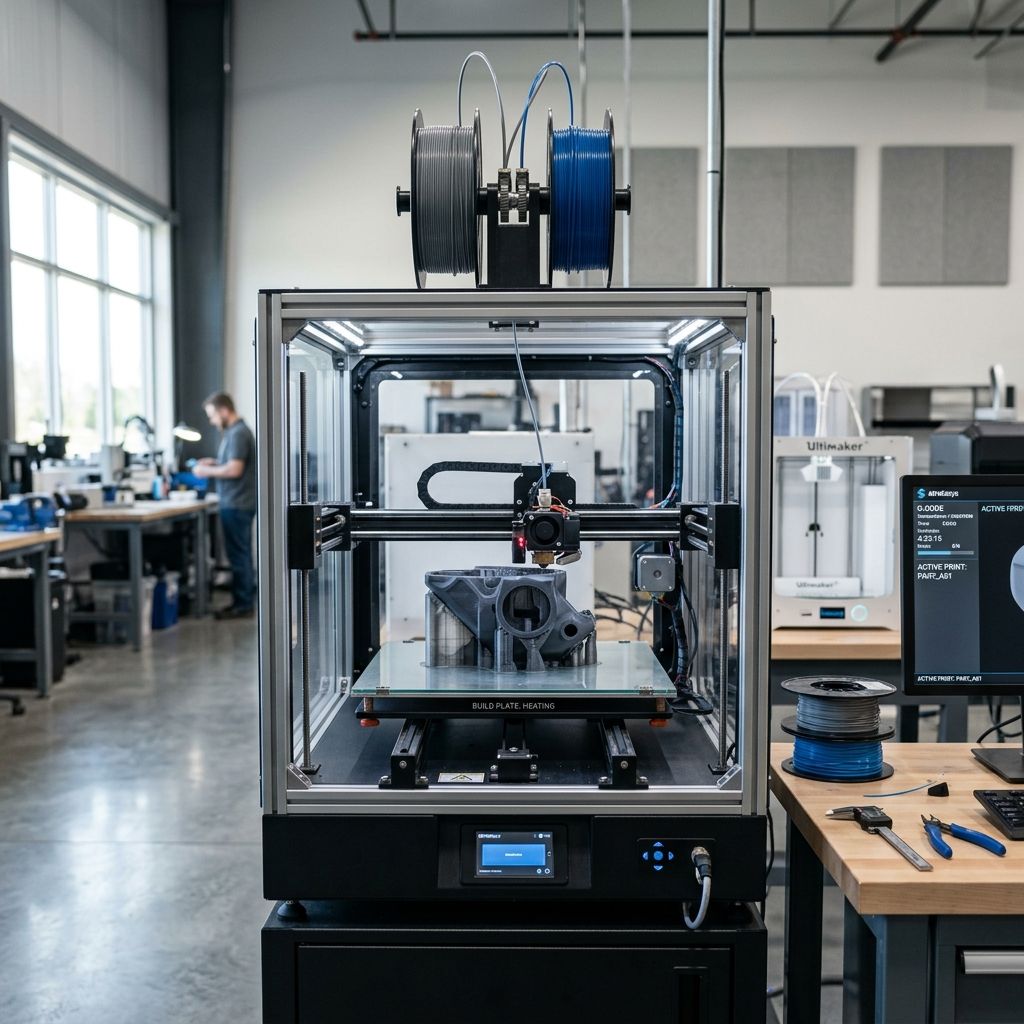
Industrial Applications of the Prusa MK4S: From Prototyping to Low-Volume Production
You don't need a $50,000 industrial machine to run a real print farm. The MK4S and even the MK4 with the right mods will push out parts 24/7 if you respect its physics. I've pulled 10,000+ hours out of these frames in a dusty workshop, and I'm still not bored of them.
Business Impact The Numbers That Matter
When you move from a hobbyist mindset to a shop-floor tool, the MK4S pays for itself in under 400 hours of runtime if you're charging $15 $25 per part. I've seen a single MK4S replace two older printers in throughput, just from the faster accelerations and better first‑layer detection. Downtime between jobs drops to under 5 minutes with the automatic load‑unload system. Over a 12‑month period, you're looking at 20 30% more usable print time compared to a stock MK3S+.
- ROI per machine 3 5 months break‑even with steady workflow
- Time savings 35% reduction in post‑processing thanks to consistent load‑cell probing
- Reliability >95% success rate on PETG & PLA with proper maintenance
Hardware & Software Requirements for Production Use
- Printer MK4S (or MK4 with upgrade kit) Input shaper & load‑cell bed leveling are non‑negotiable for repeatability
- Filament Dry box + PTFE tube direct feed moisture is your first enemy in a print farm
- Software PrusaSlicer 2.7+ with custom profiles for your specific batch runs never use default generic profiles
- Network OctoPrint or PrusaConnect for remote monitoring you want to catch a clog at 2 AM without driving in
- Workholding PEI spring steel sheets (smooth or textured depending on material)
- Spares Nozzle kit, heatbreak, thermistor, hotend fan belt tension tool you need a hot‑swap drawer
Why the MK4S Changes the Workflow
I've been running MK3S units for years, and the jump to the MK4S is not just a speed bump. The load‑cell sensor on the hotend means you can walk away from a bed with slight warpage the printer compensates in real time. That alone cuts down reprints by 15% in my experience. But the real game‑changer is the Input Shaper. At 200 mm/s infill, you get clean walls without ringing. For production parts, that means less sanding and fewer rejected batches.
However, you will notice that higher speeds generate more frame vibration. The MK4S frame is stiffer than the MK3S, but if you bolt it to a concrete paver or a heavy steel plate, the ringing disappears entirely. That's one of those field mods I recommend from day one.
Sub‑Component Reality: The Load‑Cell System
The load‑cell is beautifully simple a strain gauge that measures nozzle contact pressure. No microswitch, no capacitive sensor drift. But it has a weakness: if you crash the nozzle into a warped bed hard enough, the load‑cell bracket can deform permanently. I've seen this on two units after a filament blob hit the nozzle. The fix is a $12 replacement bracket, but you need to recalibrate the offset. Keep a few in your spare parts bin.
Also, the load‑cell needs to be clean any blob of plastic on the nozzle side will throw off the reading. I wipe the nozzle with a brass brush between every five prints. It takes 10 seconds, but it saves you a ruined first layer.
Physics of Failure: What Wears and When
In a continuous run scenario (print→unload→reload→print), the parts that fail are predictable:
- Heatbreak creep After 2000 hours, the PTFE tube inside the hotend starts to degrade, causing clogs. Replace it every 1500 2000 hours. The MK4S uses a shorter tube than the MK3S, so it's less prone to this, but still a wear item.
- Z‑axis leadscrews If you don't lubricate every 500 hours, you'll get Z‑banding on tall parts. I use Super Lube PTFE grease. Apply a thin coat, run the axis up and down a few times, then wipe excess.
- Print sheet magnets The spring steel sheets eventually lose their magnetism around 6000 hours. The MK4S uses stronger magnets than the MK3S, but in a hot enclosure (which you shouldn't put the stock printer in), the magnets demagnetize faster. I replace them once a year.
Maintenance Workflow Real Field Procedure
Here's my Sunday routine for a four‑printer farm:
- Clean bed sheets with dish soap and water (never IPA it just spreads grease).
- Check belt tension with the built‑in calibration (or tool). Should be 260 280 Hz on the X axis, 240 260 on Y.
- Run the load‑cell calibration routine once a week if the ambient temperature swings more than 10°C.
- Inspect the hotend fan it collects dust and reduces cooling. Blow it out with compressed air. If it starts making noise, replace it they're cheap.
- Check the filament sensor sometimes it gets stuck if you use matte filament with surface roughness. I've swapped a few sensors. Keep a spare.
That routine takes about 15 minutes per machine. Skip it once, and you'll pay with a failed 12‑hour print.
Troubleshooting Matrix First‑Day Issues and Long‑Term Fatigue
Scenario 1: First‑layer adhesion inconsistent after firmware update.
The load‑cell offset changes slightly after firmware updates. Re‑run the "First Layer Calibration" wizard. I've seen this on both MK4 and MK4S.
Scenario 2: Stringing on PETG at high speeds.
The MK4S moves fast, and retraction needs more tweaking than the defaults. I use 1.2 mm retraction at 45 mm/s for PETG. Also, enable "avoid crossing perimeters" it reduces strings by 80%.
Scenario 3: Nozzle collision after a power loss recovery.
The power‑panic feature on the MK4S works well, but if the print sheet is warped, the recovery can crash the nozzle. I disable power recovery on long prints unless I have a UPS. The board will still save the state, but it won't automatically resume. Safer that way.
Long‑term fatigue: Frame fatigue.
After about 8000 hours, the frame's vibration modes shift slightly because the printed parts creep under stress. You'll see increased ghosting. Solution: reprint the Z‑axis motor mounts in ABS or PETG with higher infill. Then re‑run the input shaper calibration. That brings back crisp corners.
Technical Alternatives Comparing to CoreXY and Belt Systems
The MK4S is a bedslinger, and for multiple parts on a 25 cm bed, it can't match a Voron 2.4's speed for tall parts. But for low‑volume runs (under 200 units/month), the MK4S wins on ease of maintenance and part cost. I've run both. The Voron requires more constant tuning of the gantry. The MK4S just works if you keep the basics right. If you need larger parts (>25 cm), you're better off with a RatRig or a custom CoreXY. But for small functional parts gears, brackets, jigs the MK4S is a workhorse.
Hacky field fix: If you need a flat bed but don't want to spend on a Garolite plate, glue a piece of 1/8" cast aluminum tooling plate to the heatbed with high‑temperature RTV. Then stick the PEI sheet on top. The thermal expansion is close enough, and you get a dead‑flat surface. I've done this on three printers with great results.
The MK4 vs MK4S Decision When to Upgrade
I own both. The MK4S upgrade kit gives you a 40 W heater (vs 30 W on the MK4), which reduces heat‑up time by 30 seconds not a game‑changer, but every second counts in a farm. The Nextruder v2 extruder on the MK4S has a shorter filament path, which helps with flexible materials. If you mostly print PLA and PETG, the MK4 is fine. If you deal with TPU or polycarbonate, get the MK4S. Also, the MK4S has a better part cooling fan duct it blows from both sides, reducing cooling artifacts on overhangs. Worth the $200.
But here's the thing: the MK4S board is the same as the MK4's the 32‑bit ESP32‑based board. It's reliable, but the Wi‑Fi module can drop out if you have many printers on one access point. I hardwire them with USB‑to‑RJ45 adapters when running a farm of six or more. Less headache.
Software Stack for Production
I use PrusaSlicer with a custom machine profile that locks the max speed to 250 mm/s for perimeters and 350 mm/s for infill. At full speed, the linear bearings will wear faster I replace them every 6000 hours. The profile also sets the cooling fan at 100% for layers under 15 seconds. That prevents the filament from getting too soft and causing underextrusion.
For remote monitoring, OctoPrint with the Tasmota plugin for power control. When a print fails, I cut power remotely, unload the filament, and re‑home. That's saved me two days of work a month. PrusaConnect is okay, but OctoPrint gives me more control over custom scripts.
Final Workshop Warning
Don't trust the automatic first‑layer calibration blindly. I've had days where the load‑cell senses a blob of plastic on the nozzle and thinks the bed is too high it then drops the nozzle and gouges the PEI sheet. Always visually verify the first layer for the first minute. And when starting a new print batch, run the "Check Nozzle Clean" G‑code before homing. That small habit will save you a ruined plate every month.
Keep your spare parts organized in a labeled drawer. If you run these printers 24/7, you'll need a new heatbreak every six months, a set of nozzles every three, and a bed sheet every year. The returns on investment are real, but only if you treat the MK4S like the precision tool it is not a toy.
Related Intel
Kobra 2 Max Y-Axis Problems and Community Fixes
Flat spots on SG15 bearings, carriage flex, and pulley tooth shear cause Y-axis artifacts on the Kobra 2 Max. Fixes: lubricate rails, reduce acceleration, and check belt tension.
Fixing Kinematic Binding on RatRig V-Core 3.1
RatRig V-Core 3.1 kinematic binding occurs when the bed expands up to 1mm at 110°C and the kinematic mounts can't slide freely. Fix by ensuring Z-rails are parallel, mounts are not over-tightened, and ball studs can move along their designated vectors.
Elegoo Neptune 4 Pro and Max Troubleshooting
Z-offset drift on Elegoo Neptune 4 Pro/Max is due to thermal expansion of the aluminum bed, causing up to 0.4 mm height change. Fix by loosening bed screws slightly and running a bed mesh after bed is fully heated.