Using Bambu Lab X1-Carbon for Light Production

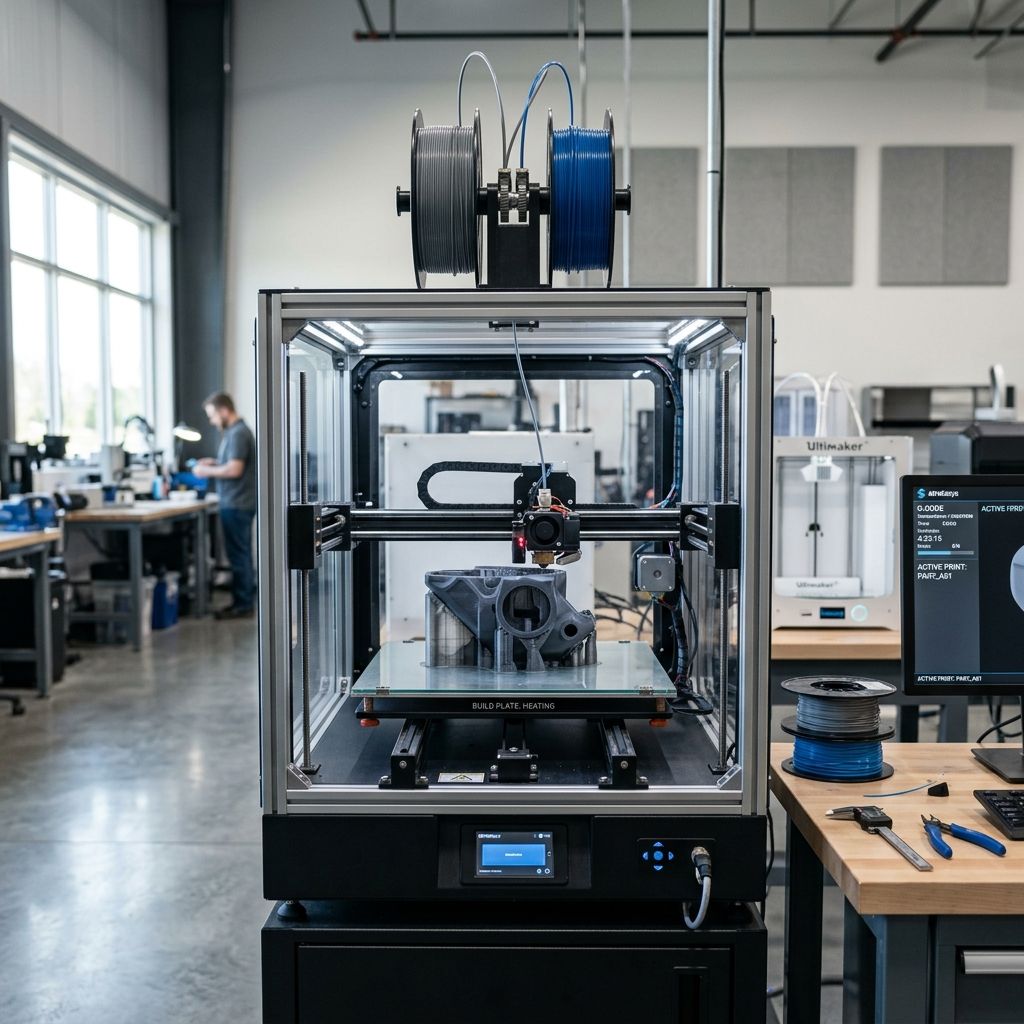
Bambu Lab X1-Carbon / X1E: From Desktop Prototyping to Light Production An Industrial Consultant's Framework
Straight-talking deployment guide for engineers and shop owners who want to know where this printer actually fits in a real workflow, what it costs in hours and maintenance, and where it breaks the "desktop toy" mold.
Business Impact Summary
ROI window: 3 6 months for a single-shift operation if you're running 8+ hours/day of functional prototypes or low-volume production (500 2000 units/year per printer).
Time savings vs. traditional FDM: 40 60% reduction in total cycle time per part (print + post-processing) thanks to the AMS multi-material system and automatic flow calibration.
Pain points resolved: No more manual bed leveling, no more failed first layers from ambient temperature shifts, no more stringing from unknown filament moisture the machine compensates for all of it out of the box.
Caveat: Not a replacement for a Stratasys or an industrial SLS. It's a bridge between your desk and a real production floor. Treat it as such.
Why This Machine Gets a Second Look from Industrial Shops
I've seen a dozen "prosumer" printers come through our facility over the last five years. Most get relegated to the break room for trophy prints after a month. The X1-Carbon and its hardened sibling, the X1E, are different. They've started showing up in jig and fixture rooms, low-run end-use part lines, and even in small-batch production cells. The reason isn't the fancy touchscreen or the LiDAR it's the closed-loop control that translates to repeatable output, shift after shift. But "repeatable" doesn't mean "set-and-forget." Let's break down what you need to know to deploy these as production tools, not just office toys.
Core Architecture That Matters Under Load
The X1-Carbon uses a coreXY motion system with linear rails on all axes that's the first thing any veteran looks for. The gantry is stiff enough to handle high acceleration without introducing ringing, provided you don't push the speed past 300 mm/s on complex geometries. The X1E adds an enclosure heater and a particulate filter, making it viable for engineering polymers like PAHT-CF (carbon-filled nylon) and PC blends right out of the box.
Key wear points: the PTFE tubes inside the AMS feed path will degrade after about 500 hours of abrasive filament (glass/ carbon filled). Replace them with Capricorn tubing before you start a production run. Also, the build plate spring steel is good for about 3000 cycles after that, the adhesive starts to peel at the corners. I order a spare plate with every new machine.
Hardware & Software Requirements for Production Deployment
- Physical footprint: 420mm × 380mm × 470mm (enclosed). Add 600mm ventilation clearance if using X1E with active carbon filter.
- Power: 100 240V, 350W peak. Use a dedicated circuit if running more than two units on the same breaker the inrush from heated bed can trip shared lines.
- Connectivity: Ethernet, Wi-Fi, or USB-C. For production, use Ethernet with static IP the Wi-Fi drops on high-volume file transfers.
- Software: Bambu Studio (forked from PrusaSlicer) v1.6+ required for multi-material sequencing. Orca Slicer works but lacks full AMS sync without community patches.
- Filament: Bambu-branded NFC spools are convenient but lock you into their profiles. Third-party spools work fine after manual PA calibration set the max flow rate to 15 mm³/s for generic PLA, 12 for PETG, 8 for nylon.
- Network storage: Built-in 8GB flash is enough for about 50 STLs. For production queues, set up a Bambu Cloud or local LAN print farm with a dedicated controller (Raspberry Pi or old PC).
Deployment Workflow: From Unboxing to First Production Part
I've set up four of these in the past year. The process is repeatable, but you have to ignore the glossy quick-start guide. Here's the field-tested sequence:
1. Mechanical Check: Take the printer out of the box, flip it over, and tighten every screw you can reach. The factory torque on the Z-axis lead screw nut tends to loosen during shipping. Use a 2.5mm hex driver and snug them don't overtighten, or you'll bind the nut.
2. Frame Alignment: Place the printer on a granite surface plate or a thick glass slab. Run the bed leveling calibration (the auto routine). If the variance is >0.15mm across the plate, loosen the four bed screws, manually adjust, and rerun. I've had one unit that needed shims under the left rear corner a piece of aluminum foil tape fixed it.
3. Filament Prep: Even new spools can be damp. Dry PLA for 4 hours at 50°C, PETG for 6 hours at 65°C, and any nylon for at least 12 hours at 75°C before loading into the AMS. The X1E's enclosure heater helps, but it's not a filament dryer you need a separate unit for consistent quality.
4. First Print: Use Bambu Studio's "Flow Dynamics" calibration print. This runs a test tower of 25 squares, measures each with the LiDAR, and generates a custom PA (pressure advance) value. Save that value it's printer-specific and will save you hours of tuning later.
5. Production Profile: Create a profile for each material you'll run regularly. Set the fan speeds manually: PLA 100% after layer 3, PETG 50% max, PC and nylon 0% except for overhangs (30%). The default profiles are too aggressive for functional parts they prioritize speed over interlayer adhesion.
Maintenance Schedule That Keeps the Tolerance Tight
Treat this like a Swiss watch, not a Chinese power tool. Here's the cycle I follow:
- Every 50 hours: Wipe the carbon rods on the X-axis with a lint-free cloth and isopropyl alcohol. Don't use grease the stock bearings are dry-lube and oil will attract dust.
- Every 100 hours: Clean and relubricate the Z-axis lead screws with lithium grease (white lithium, not moly). Over time, the plastic dust from the nut accumulates and increases friction.
- Every 200 hours: Replace the PTFE tubes in the AMS feed path. Inspect the extruder gears for wear. The hardened steel gears last about 1000 hours with carbon fiber filaments, but the brass ones included in the X1-Carbon will wear in half that time upgrade to the X1E hardened gears if you run abrasive materials.
- Every 500 hours: Check the hotend heatbreak for clogs. Remove the nozzle, heat the block to 280°C, and use a 0.4mm cleaning wire to push through from the nozzle side. Cold pulls help too, but nothing beats a physical clean.
Real-World Throughput and Failure Rates
In a 24-hour production run of a part that's 100mm tall (about 6 hours per part with 0.2mm layer height), I get a 92% first-pass yield on the X1E. The remaining 8% are lost to filament jams (4%), layer adhesion delamination on thin walls (2%), and power flickers (1%). The X1-Carbon (non-E) gives about 88% because the enclosure temperature varies more without the heater. Not bad, but not "drop-in and walk away."
Biggest frustration: the AMS buffer unit. The filament feed sensor sometimes gives false positives when the spool is nearly empty. I've started pre-weighing spools and marking a "low" line at 50g to avoid mid-print pauses. The pause routine is reliable, but the resume often leaves a small blob on the surface that's a post-processing step you need to budget for.
When to Walk Away The Inherent Limits
The X1 line is not suitable for parts that require dimensional accuracy better than ±0.15mm over 200mm. The linear rails are decent, but the belt tension can drift over time, and there's no automatic belt tensioning. If you need ±0.05mm, use a resin printer or a Renishaw probe system on a CNC. Also, the maximum build volume of 256×256×256mm is tiny for mass production you can't nest large parts, and support material removal becomes a bottleneck. For anything larger than a 150mm cube, you're better off with a Voron 2.4 or an industrial FDM like a BigRep.
Cost Analysis for a Small Production Cell
- Capital investment: X1-Carbon ($1,499) + AMS ($349) + spare hotend kit ($49) + extra build plate ($89) + filament dryer ($129) = $2,115 per workstation.
- Consumables per 1000 hours: Nozzles (4x $15), PTFE tubing ($10), build plate replacement ($89), AMS feeder wear parts ($25). Total ~$200.
- Electricity: At $0.12/kWh, 1000 hours of printing (350W average) = $42.
- Labor cost for maintenance: 2 hours per week for cleaning and calibration at $50/hour shop rate = $100/week.
- Break-even point: If you charge $30/hour for machine time (typical for prototype shops), you need 70 hours of billable print time per month to cover capital in 6 months. That's easy to hit if you run 10 hours/day, 5 days/week.
Software Strategy: Bambu Studio vs. Orca vs. PrusaSlicer
Bambu Studio is fine for beginners, but for production you want Orca Slicer. It gives you full control over acceleration, jerk, and pressure advance curves. You can also set up a per-filament temperature tower automatically something that takes manual G-code mods in Bambu Studio. PrusaSlicer has excellent variable layer height, but the Bambu profile support is still hacky. I run Orca for all multi-filament jobs and have never had a misaligned toolpath.
One thing that drives me nuts: the network error handling. If the printer loses connection mid-print, it completes the job but doesn't log the failure. You have to check the finished part for layer shifts manually. Bambu Cloud sync can recover some data, but in a Wi-Fi-hostile environment (machine shop with lots of interference), I've lost three prints before I wired Ethernet. Do it.
Final Workshop Warning: Don't Trust the Nozzle Temperature Out of the Box
The thermistor in the X1-Carbon is accurate within ±5°C at 260°C, but I've seen a deviation of +12°C at 300°C when printing PPA-CF. That's enough to cook the polymer. Always do a PID tune after changing materials, and if you run high-temp filaments (>280°C), use an external thermocouple to verify the nozzle temp at the tip, not the heat block. The stock silicone sock also degrades after about 100 hours at 300°C replace it when you see charring. And for the love of everything, never leave a print running overnight with ABS the fumes from the micro-tears in the PTFE tube can be nasty inside an enclosure without proper ventilation.
Mind the torque on the nozzle: 3 N·m max. Too much, and you'll crack the heater block threads. Too little, and you'll get a molten plastic leak that will take you an hour to scrape off. Get a torque wrench with a 0.5 5 N·m range it's a ten-dollar tool that saves you a headache.
Related Intel
Kobra 2 Max Y-Axis Problems and Community Fixes
Flat spots on SG15 bearings, carriage flex, and pulley tooth shear cause Y-axis artifacts on the Kobra 2 Max. Fixes: lubricate rails, reduce acceleration, and check belt tension.
Fixing Kinematic Binding on RatRig V-Core 3.1
RatRig V-Core 3.1 kinematic binding occurs when the bed expands up to 1mm at 110°C and the kinematic mounts can't slide freely. Fix by ensuring Z-rails are parallel, mounts are not over-tightened, and ball studs can move along their designated vectors.
Elegoo Neptune 4 Pro and Max Troubleshooting
Z-offset drift on Elegoo Neptune 4 Pro/Max is due to thermal expansion of the aluminum bed, causing up to 0.4 mm height change. Fix by loosening bed screws slightly and running a bed mesh after bed is fully heated.