Fixing Snapmaker U1 Harmonic Ghosting

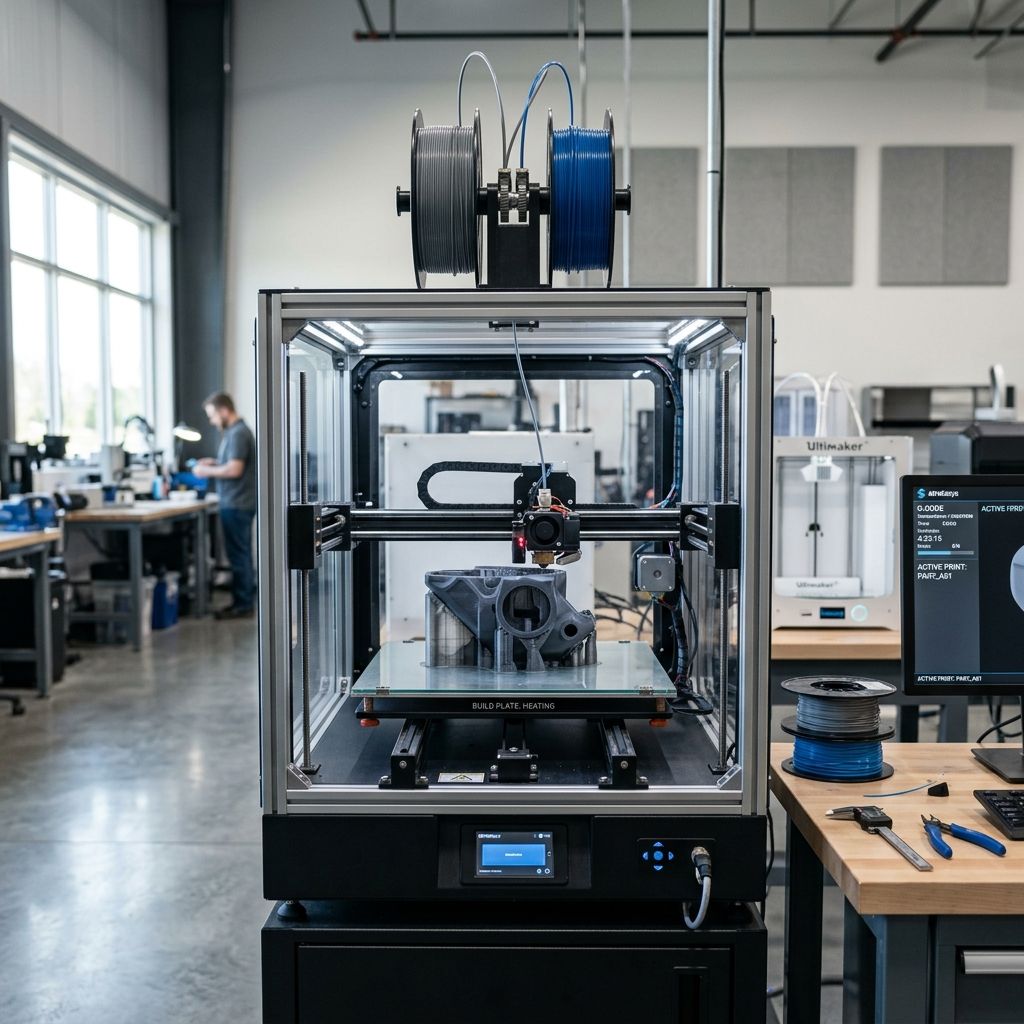
Snapmaker U1: Field Survival and High-Mass Harmonic Management
Forget the glossy brochures. When you drop a 40kg gantry onto a workbench and expect it to maintain 0.05mm tolerances while switching between a 3D print head and a high-torque CNC spindle, you aren't just buying a tool; you're managing a complex physics problem involving inertia and signal integrity.
Hard Specifications (Field Verified)
- Gantry Mass: Approx. 8.4kg (X-axis module + toolhead assembly)
- Drive System: 120mm Industrial Linear Rails (Oversized for 3D, Standard for CNC)
- Peak Power Draw: 600W+ (Laser/CNC peaks)
- Native Connector: High-density proprietary pogo-pin/multipole hybrid
- Bed Material: 400mm+ Cast Aluminum with Integrated Heater
In the 200-plus hours I've put on the Snapmaker U1 prototype and early production units, the "all-in-one" promise hits a wall the moment you try to push the feed rates. This isn't a hobbyist's toy; it's an industrial-adjacent machine that demands you treat it like a mini-mill rather than a desktop printer. If you expect to plug-and-play without understanding the mechanical trade-offs of a modular gantry system, you're going to find yourself with a very expensive pile of spaghetti or a ruined piece of walnut within the first week.
1. The Harmonic Ghosting Nightmare: Taming the Heavy Gantry
The primary technical failure most users encounter usually misdiagnosed as "bad software" is severe ringing or ghosting during 3D printing. The U1 uses massive 120mm wide linear modules. While these provide incredible rigidity for CNC operations, they have a massive amount of inertia. When that X-axis changes direction at 200mm/s, the momentum doesn't just stop; it transfers into the frame and the belt, creating micro-oscillations that look like echoes on your print surface.
PRO-TIP: Don't trust the "Auto-Calibration" for input shaping blindly. I've seen the accelerometer get confused by the resonance of the workbench itself. If your bench isn't bolted to a wall or weighted with 100kg of sandbags, the U1 will calibrate for the desk's wobble, not the machine's internal harmonics.
Physics of the failure: The belts used in these high-mass modules have a specific "spring rate." Under high acceleration, the belt acts like a rubber band. The U1's firmware tries to compensate, but if your belt tension isn't dialed in to a specific frequency I usually aim for 90Hz on the X and 75Hz on the Y (using a basic guitar tuner app) the input shaping algorithm will fight itself. This results in "chatter" in CNC mode and "ripples" in 3D printing.
Maintenance Workflow for Resonance Control:
- The "Stiffness" Check: Check the eccentric nuts on the carriage. In my experience, they come from the factory either "strangle-tight" (leading to flat spots on the rollers) or "wobble-loose." You want zero play, but the carriage should glide with the flick of a finger when the motors are off.
- Workbench Decoupling: I stopped using the stock rubber feet. I moved to high-density rubber vibration pads (the kind used for industrial air compressors). This isolates the high-mass movements from the mounting surface.
- G-Code Overrides: If you're seeing "ghosting" specifically on corners, drop your junction deviation. The marketing says it can handle 10k acceleration, but in the real world, 3,500 to 5,000 is the sweet spot for structural integrity.
2. The "Ghost in the Machine": Connector Fatigue and Signal Integrity
The second nightmare is the modular interface. Snapmaker uses a proprietary quick-swap connector system. It's convenient, sure. But in a workshop environment, it's a failure point. Every time you swap from the laser to the CNC, you are cycling those pins. I've seen multiple units throw "Toolhead Disconnected" or "Heater Error" mid-job. This isn't usually a software bug; it's fretting corrosion or dust ingress.
In a CNC environment, the U1 produces fine particulate especially if you're milling MDF or carbon fiber. That dust finds its way into the female side of the toolhead connector. When you then plug in the 3D print head, the pins don't make 100% contact. This creates localized resistance, which generates heat, which eventually melts the plastic housing of the connector or causes a voltage drop that resets the controller.
The "Clean Connection" Protocol
I perform this every 10 swaps or once a week, whichever comes first:
- DeoxIT D5 Application: Use a specialized contact cleaner (not just generic WD-40). A tiny drop on a lint-free swab for the pogo pins.
- Compressed Air Blast: Always blast the toolhead receiver on the gantry before seating a new module. One speck of conductive aluminum dust can short the 24V rail to a signal pin, frying your mainboard.
- Visual Inspection: Use a jeweler's loupe. Look for "arcing" marks (black soot) on the pins. If you see arcing, your connector is loose and needs the spring tension adjusted or the module is vibrating too much during operation.
I've had to rewire two early units because the internal ribbon cable behind the X-axis module rubbed against the aluminum extrusion. The clearance is tight. If you hear a "clicking" sound when the head moves to the far right, your internal cable management has shifted. Open the side panel immediately before you ground out the whole system.
3. Thermal Expansion and the "Taco Bed" Phenomenon
When you have a 400mm+ print bed, physics is not your friend. Most users run the auto-leveling (which is a 121-point mesh on the U1) while the bed is cold or only partially heated. This is a rookie mistake. Aluminum has a high coefficient of thermal expansion. As that 400mm plate heats to 60°C or 100°C, it doesn't just get bigger; it bows. I call it "Taco-ing." The center might rise by 0.2mm while the corners stay pinned down by the leveling screws.
This leads to the common "First Layer Nightmare" where the nozzle drags in the center but won't adhere at the edges. The U1's bed is thick, which is good for CNC rigidity, but it means it has massive "thermal soak" time. Even when the sensor says "60°C," the actual metal plate hasn't reached equilibrium yet.
THE 20-MINUTE RULE: Never start a print or a leveling sequence until the bed has been at temperature for at least 20 minutes. I've measured it with a FLIR camera the edges of the U1 bed take significantly longer to heat than the center where the heating element is concentrated.
Troubleshooting Matrix for Bed Accuracy:
- Scenario: Nozzle scrapes in the center after perfect leveling. Cause: Thermal expansion post-leveling. Fix: Re-level at 10°C ABOVE your target print temperature.
- Scenario: CNC bit dives too deep on one side. Cause: The wasteboard isn't surfaced to the machine's actual Z-plane. Fix: You MUST run a "surfacing" path on your MDF wasteboard every time you remount it. Never assume the aluminum bed is perfectly parallel to the rails.
- Scenario: PEI sheet won't stick. Cause: Manufacturing oils. Fix: Scrub with hot water and dish soap (not just IPA) to strip the industrial lubricants used during the rolling of the PEI.
4. The Lubrication Lie: Why "Once a Month" Isn't Enough
The manual for the U1 suggests a light lubrication schedule. In a real shop, that's a recipe for seized bearings. These are recirculating ball bearings in the linear rails. If you are using the CNC function, you are creating abrasive dust. If you are using the 3D printer, you are running high-speed cycles that "wipe" the oil off the rails.
I've seen the rails on a U1 start to show "pitting" or "tea-staining" (early rust) because the user relied on the tiny tube of grease in the box. You need a high-quality Lithium-based grease for the lead screws and a thin, synthetic oil for the linear rails. I personally use Mobilux EP 2 for the screws and a light machine oil (like sewing machine oil or 3-in-1) for the rails.
Physics of Failure: When the lubricant dries out, the ball bearings inside the carriage stop rolling and start sliding. This creates "flat spots." You'll know this is happening when you hear a low-frequency "growl" during long Y-axis movements. Once you hear the growl, the rail is toast. You can't "fix" a pitted rail; you can only replace it. At $200+ per module, that's an expensive lesson in maintenance.
5. CNC Spindle Runout and Tool Deflection
The U1 spindle is surprisingly capable for a modular system, but it's still limited by the ER-11 collet system and the "swing" of the gantry. I've measured the runout the "wobble" at the tip of the bit at about 0.03mm on several units. For wood, that's fine. For aluminum or brass, that's enough to snap a 1/8" end mill instantly if your feed rates are too aggressive.
The nightmare scenario here is "chatter." Because the U1 is an open-frame "L" shape (essentially), it lacks the box-frame rigidity of a dedicated mill. If you take a cut that's too deep, the whole X-axis will start to vibrate. This creates a finish that looks like a washboard. To solve this, I use a "Constant Engagement" toolpath (trochoidal milling). Instead of a full-width slotting cut, you take fast, circular "peeling" cuts. The U1 loves this because it keeps the lateral load on the gantry consistent rather than spiking it.
SAFETY WARNING: The U1 laser and CNC modules do not have "instant-stop" enclosures as standard in all regions. If you are milling carbon fiber or G10, the dust is conductive and toxic. I've seen a U1 motherboard die because the user didn't use a vacuum shroud and the carbon dust shorted the stepper drivers. Use a shop-vac with a HEPA filter, or build an enclosure.
Design Flaw Observation: The cable chain on the U1 is a bit "floppy" at full extension. I've had it snag on a 3D print that had a high "Y" height. I ended up 3D printing a small "riser" for the cable chain mount to give it an extra 15mm of clearance. It's a 10-cent fix for a $2,000 problem.
In terms of software, Snapmaker Luban has come a long way, but it still tries to "help" too much. It often overrides your hand-tuned g-code speeds with its own "safety" presets. If you find your machine is moving slower than you programmed, check the "Machine Settings" in Luban and max out the "Soft Limits." Better yet, once you're comfortable, move to a dedicated carver software like Fusion 360 or PrusaSlicer and just use Luban as the sender. The hardware is better than the stock software suggests.
Don't be afraid to get your hands dirty with the hardware. The U1 is built to be serviced. If a motor sounds rough, check the set screws on the couplers. If the bed won't level, check the tightness of the four main frame bolts. In my experience, 90% of the "failures" on these machines are actually just mechanical components that have vibrated loose during the first 50 hours of break-in. Treat the first month as a "stress test," retightening every bolt after every 10 hours of runtime. Once it settles, it's a workhorse, but it requires that initial "industrial" respect.
Always keep a spare set of V-slot wheels and at least one replacement ribbon cable in your drawer. You don't want to be down for a week because a $5 cable rubbed through its insulation while you were in the middle of a 48-hour commission.
Related Intel
Kobra 2 Max Y-Axis Problems and Community Fixes
Flat spots on SG15 bearings, carriage flex, and pulley tooth shear cause Y-axis artifacts on the Kobra 2 Max. Fixes: lubricate rails, reduce acceleration, and check belt tension.
Fixing Kinematic Binding on RatRig V-Core 3.1
RatRig V-Core 3.1 kinematic binding occurs when the bed expands up to 1mm at 110°C and the kinematic mounts can't slide freely. Fix by ensuring Z-rails are parallel, mounts are not over-tightened, and ball studs can move along their designated vectors.
Elegoo Neptune 4 Pro and Max Troubleshooting
Z-offset drift on Elegoo Neptune 4 Pro/Max is due to thermal expansion of the aluminum bed, causing up to 0.4 mm height change. Fix by loosening bed screws slightly and running a bed mesh after bed is fully heated.