Bambu Lab X1-Carbon & X1E Settings for Production

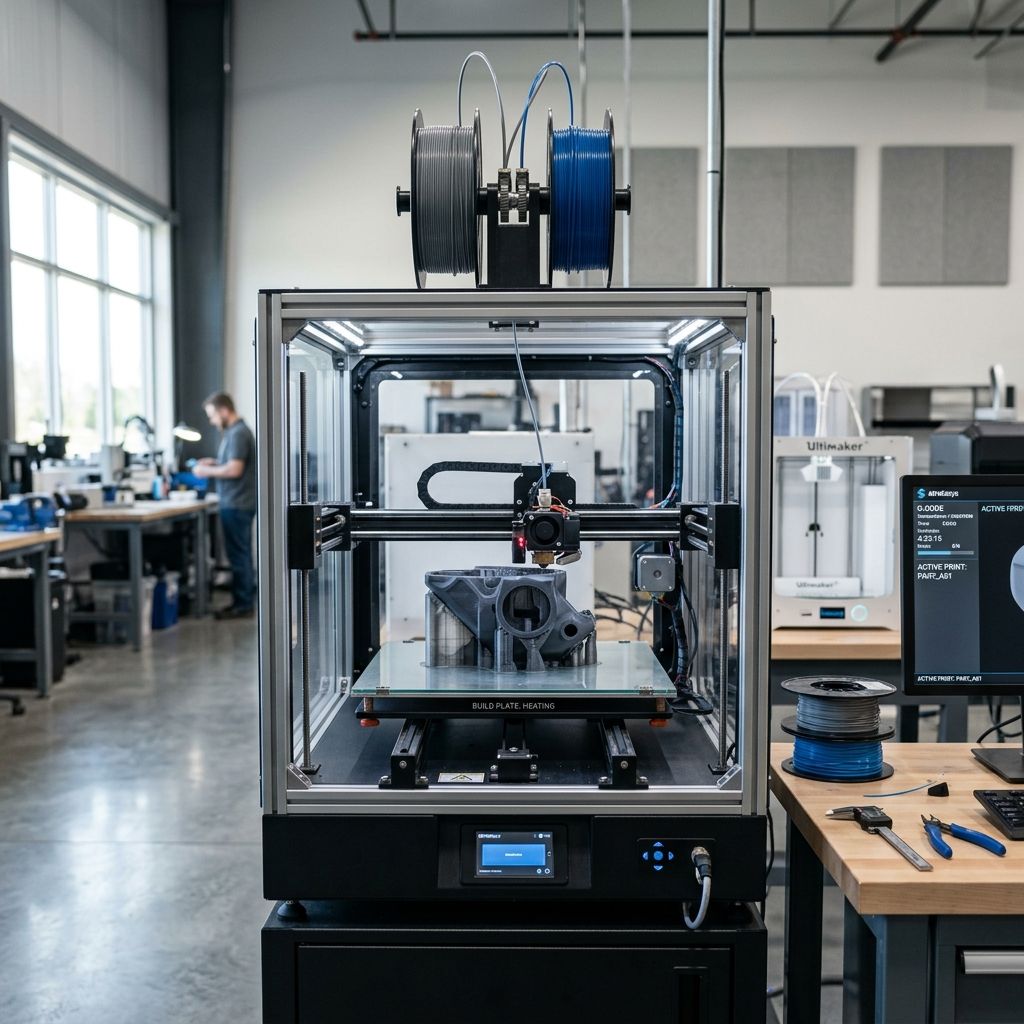
Bambu Lab X1-Carbon & X1E: Real-World Settings Optimization for Production Reliability
You've unboxed the shiny thing, watched it print a benchy in 18 minutes, and now you're chasing that perfection under load. After 20 years of pushing printers past their limits, I'll show you where the stock profiles lie and how to make the X1 platform actually repeatable shift after shift. No marketing just what works on a dirty shop floor.
Technical Summary: What the Brochure Misses
The X1-Carbon and its derivative X1E are closed-loop motion systems with core XY kinematics, a 300°C capable hotend, and an enclosure that hits 60°C ambient without active cooling management. The two key failure modes under production loads are (1) thermal runaway of the chamber heater regulation affecting PA (polyamide) prints and (2) resonance artifacts from the accelerometer-based input shaping degrading over time due to belt wear. The x1E adds Ethernet and secure boot, but the mechanics are identical don't expect different print behavior.
- Motion System: XY Core 20mm MGN9 rails, Gates 2GT belts, 1.8° steppers with 1/16 microstepping. Effective resolution ~0.001mm at the nozzle (theoretical), but real-world repeatability is ~0.05mm due to thermal expansion of the gantry.
- Hotend: All-metal heat break with hardened steel nozzle (0.4mm standard). Maximum safe temperature: 300°C for <30 minutes; above that, creep in the PTFE liner adjacent to the heat break causes clogs.
- Chamber: 60W heater (X1C) or 100W (X1E) with thermocouple. Chamber temperature control is PID with a 5°C deadband expect swings of ±3°C during hotend heating cycles.
- Firmware Constraints: The AMS system forces filament-specific profiles. If you use third-party filaments, you must override the spoofing by editing the gcode header. Otherwise the machine will clamp max flow to the default of the loaded profile (typically 12mm³/s for generic PLA).
1. Motion System: Damping the Chatter and Slop
The X1 uses a resonance compensation (input shaping) algorithm that runs on boot. In my experience, the accelerometer data drifts over 500 hours of use because the belt tension changes the belts stretch, and the Y-axis tensioner spring settles. You'll start seeing ghosting on sharp corners even though the firmware thinks the resonance frequency is still 45 Hz.
The Fix: Manual Tuning Every 200 Hours
Bambu's automatic resonance calibration (accelerometer) only runs at power-up. If you run long prints or high-temperature materials (nylon, PC), the belts soften and the frequency shifts mid-print. Force a calibration before any critical job:
- Step 1: Home all axes. Pre-heat the chamber to the print temperature (e.g., 50°C for PC) and let it soak for 15 minutes. Run the "Calibrate" function from the Device tab this forces a fresh measurement.
- Step 2: Check belt tension via the audible pitch pluck the X belt like a guitar string: should be around C# (277 Hz). Y belt should be E (330 Hz). If it's lower, adjust the tensioner screw 1/4 turn at a time. DO NOT over-tighten you can snap the belt or bend the gantry.
- Step 3: After tension adjustment, run the accelerometer calibration again. If the new measured frequency differs by more than 5% from the previous one, you have a mechanical resonance couple (likely loose pulley grub screw).
CAUTION: Never run the automatic calibration with a cold bed or chamber. The thermal state of the aluminum gantry changes the resonance you'll get a low-frequency reading that leads to overshoot compensation and ringing on the first layers. I've seen prints ruined because someone calibrated at 25°C and then printed ABS at 100°C bed.
2. Hotend & Extruder: Flow, Clogs, and the 300°C Lie
The stock hotend can handle 300°C for short periods, but the filament path has a PTFE tube insert that ends just above the heat break. Above 280°C, the PTFE starts to degrade, releasing toxic fumes and causing friction-induced flow restriction. For high-temp materials, you need the Bambu Lab "High Temperature Plate" kit (a hardened steel heat break with a larger diameter channel) or a third-party all-metal heat break (like the one from Mellow) that eliminates the PTFE entirely.
Flow Rate Limitations: The default volumetric flow limits in the filament profiles are conservative 12 mm³/s for PLA, 10 for PETG, 8 for ABS. On the X1's high-flow hotend you can push 18-20 mm³/s with good heat-soaked nozzles, but beyond that the extruder (a dual-gear drive with a 3:1 reduction) starts skipping. The extruder has a torque sensor that limits max force if you get a "Motor A skip" error, reduce flow by 1 mm³/s until it stops.
Engineering Cause-Effect: The Heat Creep Cycle
When you print with high retraction (default 0.8mm) and a hot chamber (>50°C), the heat break can't shed enough heat through the cold side to keep the filament from softening above the melt zone. The softened filament expands, increasing friction in the PTFE tube, which raises the extruder skip count, which causes underextrusion, which you try to compensate by raising temperature further a death spiral. Symptom: stringing + under-extruded walls simultaneously. Fix: Lower retraction to 0.4mm for high-temp materials, increase minimum layer time to 10s, and add a silicone sock on the hotend to isolate it from chamber heat.
3. Material Profiles: Overriding the AMS Police
The AMS (Automatic Material System) uses RFID tags to detect filament. If you use third-party spools or reuse a spool with a worn tag, the machine defaults to the last remembered profile often with wrong temps. The workaround is to edit the gcode header in your slicer (Bambu Studio or Orca Slicer) to include a "SET_FILAMENT_SENSOR ENABLE=0" command and then define your own M600 (filament change) and M104 (set hotend temp) manually. If you don't, the firmware will keep switching back to the AMS profile mid-print, changing temperatures and causing layer shifts.
- Manual Profile Creation: In Bambu Studio, go to Filament > Custom > Create. Set the "Filament ID" to a non-RFID string like "GENERIC_PLA_001". This forces the slicer to embed all temperature and flow values directly into the gcode, bypassing the AMS police.
- Flow Calibration: Run the manual flow rate calibration (a single-walled cube) at the material-specific temperature. The X1's pressure advance is set automatically by the firmware, but it assumes a linear relation. For materials with high viscosity (TPU, PC), you need to set pressure advance manually values between 0.02 and 0.08 work. Lower is better for rigid materials.
- Bed Temperature: The X1 has a 60W bed heater that can reach 120°C but struggles to maintain it when the enclosure fan (if you have one) is blowing. For warping-prone materials (nylon, PC), preheat the chamber to 60°C using the chamber heater before starting the bed heating sequence. This reduces thermal shock.
4. Enclosure Management: The Hot Air Balloon Effect
The X1C enclosure is fairly well sealed, but the standard fan configuration recirculates air over the motherboard and power supply, pulling hot chamber air across the electronics. Above 50°C chamber temp, I've seen driver overheating errors (TMC2209 thermal shutdown). Solution: Install a small 40mm fan on the back panel that exhausts air to the room, or leave the top glass open for high-temp materials. The X1E has an improved airflow path, but still suffers from the same issue if you run back-to-back prints.
PRACTICAL WARNING: If you print nylon (e.g., PA6-CF) with the enclosure closed, the chamber will reach 65°C within 30 minutes. The linear bearings on the X gantry have no active cooling the grease starts to melt and drip onto the print. Install a dedicated extraction system (e.g., a 120mm fan with a duct to the window) to keep chamber temp below 55°C for structural materials. Also, the door seal degrades after 2000 hours replace with silicone gasket from McMaster-Carr.
5. Print Speed vs. Quality: Where the Bullshit Ends
The X1 is marketed as a 500mm/s machine. I've never seen a production-quality part printed at that speed the ghosting is unacceptable for anything with tight tolerances. In practice, for functional parts (linear bearings, enclosures, jigs), run at 200mm/s for walls and 250mm/s for infill. Reduce acceleration from the default 20,000mm/s² to 5,000mm/s² for external perimeters. The input shaping can handle high accelerations but the mechanical backlash from the linear rails (MGN9) introduces a 0.02mm offset on direction changes. At 20k acceleration, that overshoot is visible.
- Speed Profile for ABS: Outer wall 120mm/s, inner wall 180mm/s, infill 250mm/s. Acceleration: 4k for walls, 6k for infill. This yields consistent layer adhesion without ringing.
- Speed Profile for PLA: Increase to 200mm/s walls, 300mm/s infill, but only for parts with cross-section < 100mm². Larger parts suffer from thermal stress due to rapid cooling.
- Z-hop: Disable Z-hop for high-speed prints. The z-axis (lead screws) can cause vertical ringing if you lift frequently. Instead, use a higher combing mode to avoid crossing open spaces.
6. Troubleshooting Matrix: Real Scenarios
Symptom: Mid-print "Motor A skip" error on large flat ABS parts.
Root Cause: Extruder force sensor tripping due to high backpressure from over-extrusion or cold nozzle. The X1's extruder has a microswitch that limits torque if the filament jams, it resets and you get a failed print.
Fix: Reduce extrusion multiplier by 0.02 increments. Also ensure the idler tension is set to 2 (the screw on the top of the print head). I've found that factory tension is too high for soft materials.
Symptom: First layer squish inconsistency left side lower than right side.
Root Cause: The X1's bed leveling (47-point probe) compensates for a warped bed, but the gantry itself can twist if the z-axis lead nuts are misaligned. Check the two lead screws they should be parallel to each other within 0.1mm over 200mm travel. Use a caliper to measure the distance between the lead screw and the frame at the top and bottom.
Fix: Loosen the four screws on the z-axis motor mounts, run the gantry up and down manually (home + raise 100mm), then retighten. This self-aligns the nuts.
Symptom: Vibrations in print at high Y acceleration (Y is the axis with one belt).
Root Cause: The Y-axis belt is longer (runs front to back) and has more damping from the idler pulleys. Over time, the idler bearings develop flat spots (from static load during idle). Replace with ceramic bearings (SKF 625-2RSH) they're quieter and last longer.
Fix: Replace both idlers (one per side). While you're in there, clean the carbon rods on the X-axis with isopropyl alcohol dust buildup increases friction.
7. Maintenance Calibration Cycle: What I Do Every 100 Hours
Treat the X1 like a CNC router it needs regular TLC. Here's my checklist:
- Belt tension check pluck test as above.
- Linear rail lubricant apply Super Lube 21030 with a syringe to the MGN9 carriages (2 drops per carriage). Wipe off excess.
- Lead screw cleaning brush out dust, relube with PTFE spray. Do not use lithium grease it collects debris.
- Hotend heat break cleaning do a cold pull (using a piece of nylon filament) to remove carbonized PLA residue. Repeat every 200 hours if you print high-temp materials.
- Chamber thermocouple check compare the chamber temp reading with a standalone thermocouple (K-type) placed at the center of the build plate. If offset > 5°C, recalibrate via firmware (requires SSH access).
FINISHING TIP: Before any print that requires tight tolerances (e.g., press-fit bearings), run a full calibration cycle (bed leveling, resonance, flow) while the machine is at operating temperature. The X1's auto-leveling probe is temperature sensitive if you level cold and print hot, the layer 1 Z-offset will be off by 0.03mm. You've been warned.
Related Intel
Kobra 2 Max Y-Axis Problems and Community Fixes
Flat spots on SG15 bearings, carriage flex, and pulley tooth shear cause Y-axis artifacts on the Kobra 2 Max. Fixes: lubricate rails, reduce acceleration, and check belt tension.
Fixing Kinematic Binding on RatRig V-Core 3.1
RatRig V-Core 3.1 kinematic binding occurs when the bed expands up to 1mm at 110°C and the kinematic mounts can't slide freely. Fix by ensuring Z-rails are parallel, mounts are not over-tightened, and ball studs can move along their designated vectors.
Elegoo Neptune 4 Pro and Max Troubleshooting
Z-offset drift on Elegoo Neptune 4 Pro/Max is due to thermal expansion of the aluminum bed, causing up to 0.4 mm height change. Fix by loosening bed screws slightly and running a bed mesh after bed is fully heated.