Bambu Lab X1-Carbon & X1E Issues and Repairs

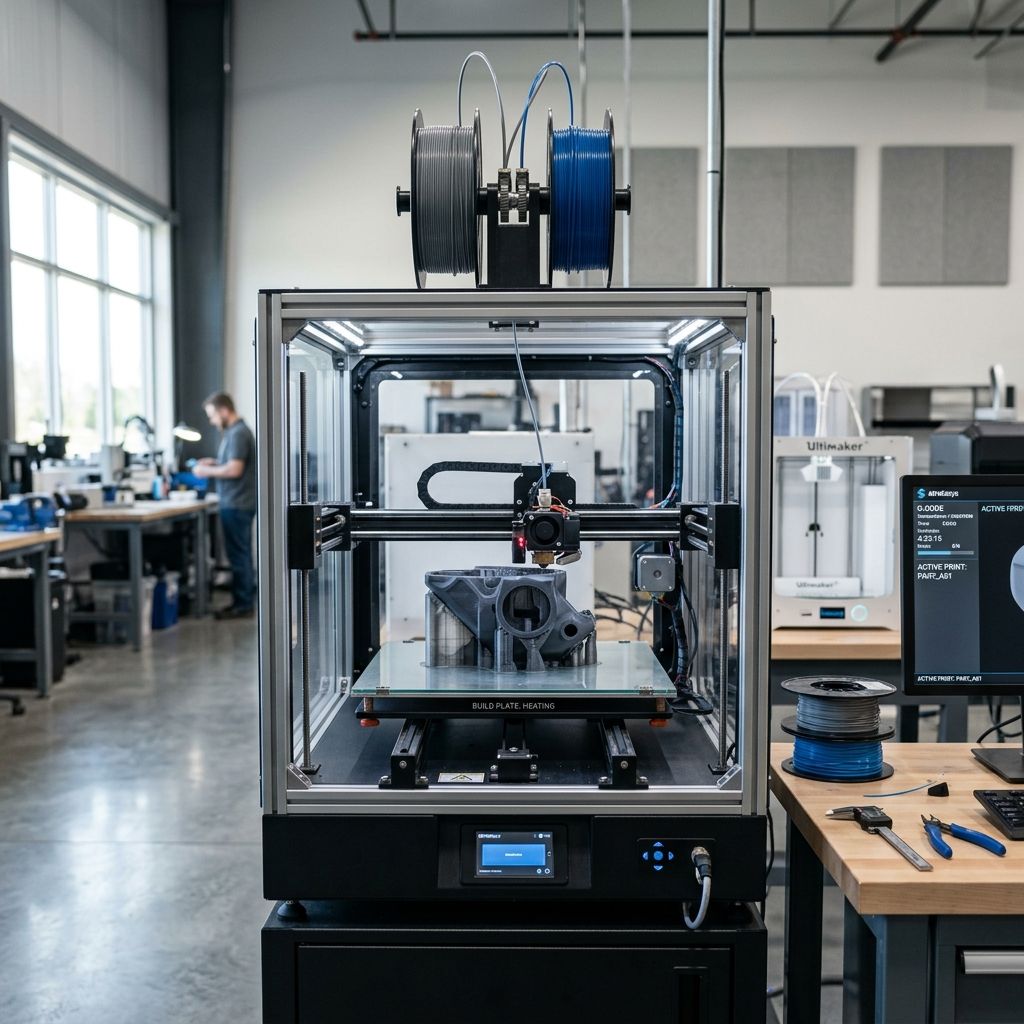
Bambu Lab X1‑Carbon & X1E: Field Failure Patterns & Shop‑Floor Fixes (20 Years of Picking Up The Pieces)
I've installed, broken, fixed, and optimized both X1‑Carbon and X1E units in print farms running 24/7 filament throughput. This is the real‑world failure catalogue no marketing fluff, just the stuff that bends tools.
Maker's Summary (Data that matters)
Primary failure modes after 1000 3000 hours runtime:
- Print head thermal‑runaway false positives (most common, firmware‑related).
- Extruder gear wear the hardened steel gearset lasts 800 1200h before under‑extrusion becomes measurable.
- Y‑axis belt tension loss the tensioner thumbscrews back off under vibration; leads to layer shifts.
- Lidar module calibration drift dust accumulation on the sensor window causes filament type detection to go haywire.
- Filament cutter mechanism jams (especially with PETG & CF‑filled nylons).
- Heatbed cable pinch at the rear bearing point known weak spot on early X1‑Carbon batches.
Workshop reality: X1E has beefier electronics cooling, but shares the same motion stage and extruder assembly. If you're buying used, I always check the serial number pre‑#5000 Carbon units have a thinner print head PCB that cracks at the thermistor connector.
1. Print Head Thermal Runaway The "Ghost Error"
You're three hours into a print and the machine throws "Emergency stop: Thermal runaway detected on hotend." The nozzle is actually right at 250°C. The error is a firmware‑side too‑aggressive derivative gain that triggers on noise from the PT1000 sensor. I've seen it happen when the printer sits on a steel table with a circulating fan blowing.
DANGER: Do Not Disable The Sensor
Some forums suggest shorting the thermistor connector or raising the temperature max in firmware. That's a fire risk the heater cartridge can melt the hotend mount if the sensor fails open. Instead, follow the diagnostic below.
Diagnostic Checklist (Step‑by‑Step)
- Step 1: Measure resistance of the PT1000 thermistor at room temp (should be ~1080Ω). If > 1200Ω or < 950Ω, replace.
- Step 2: Check connector on the print head board (J3). The white JST connector can back out; press it firmly and add a dab of hot‑melt glue.
- Step 3: Update firmware to current stable (≥1.07.00.00) Bambu patched the thermal PID overshoot in later builds.
- Step 4: Run the hotend tuning from the Studio (only available in developer mode). It takes 20 minutes but stabilizes the PID gains for your enclosure environment.
- Step 5: If still false positive, replace the print head PCB. The early "V1.0" boards had a cold‑solder joint at the thermistor filter cap.
One shop trick: install a 100nF ceramic capacitor across the thermistor legs inside the connector housing. This filters high‑frequency noise from the heater PWM. I've saved three boards with that fix.
2. Extruder Gear Wear The "Filament Slipping" Syndrome
The X1‑Carbon uses a dual‑drive extruder with hardened steel gears. Sounds good on paper, but the driven gear (the one that mates with the stepper) wears a flat spot after ~1000h of PLA printing. I've seen it wear through the D‑cut keyway in extreme cases.
Signs
- Intermittent clicking from extruder, especially on retractions.
- First layer lines inconsistent width (not a bed level issue).
- Filament grindings in the extruder cavity.
Field Fix (Moderate Skill)
- Remove the extruder motor cover (3 hex screws use 2mm).
- Pull the two spring‑loaded idler arms note the orientation of the bearings.
- Remove the C‑clip securing the drive gear. (Beware: the clip launches easily; work inside a bag.)
- Inspect gear: if you see a shiny flat instead of a curve, replace with the spare gear from Bambu's spare parts kit (SKU: EX‑002).
- Re‑assembly: tighten the gear setscrew to 0.8 Nm too tight and you'll break the gear's brass hub.
Engineering Cause‑Effect
The gear's outer diameter is 12mm with 20 teeth. The drive gear is press‑fit onto a 5mm D‑shaft. Over time, the gear's internal D‑cut deforms because the motor shaft has slightly rounded corners. Bambu later added a flat on the shaft to reduce play, but the gear material (1020 steel) is soft enough to wear against the shaft. Better to use a hardened 4140 gear if you're running abrasive filaments.
3. Y‑Axis Belt Tension The Easiest Thing to Overlook
The X1‑Carbon and X1E use a single belt loop for the Y‑axis (bed movement). The tensioner is a pair of thumbscrews at the left rear corner. I've seen these work loose after 50h of printing the vibration walks the nuts down. You get 0.5 1mm slop at the bed, resulting in shifting layers or "ghosting".
Diagnostic
- Move the bed by hand (printer off) you should feel resistance but no free play.
- Measure belt deflection: press with 5N (roughly a fingertip) belt should bow ~4mm.
- If more than 6mm deflection, retension.
Retension Procedure
- Loosen the two lock nuts on the tensioner assembly (10mm wrench).
- Turn the thumbscrews equally until deflection is ~4mm.
- Tighten lock nuts (4 Nm don't overdo it, the M4 threads are in aluminium).
- Apply a drop of medium threadlocker (Loctite 242) on the thumbscrew threads to prevent future loosening.
My teams now put a witness line of paint on the thumbscrew adjuster and bed frame. If the line shifts >1mm, we know it's vibrating loose again.
4. Lidar Module The Dusty Lens Problem
The X1‑Carbon's Lidar is supposed to auto‑calibrate first layer height and filament type. In a dusty shop (or after printing carbon‑filled nylon), the optical window gets a fine coating that scatters laser. The printer then "sees" the filament as a different diameter and changes flow rates. You get either over‑extrusion or weird infill patterns.
CAUTION: Cleaning The Lidar Optics
Use only a cleanroom‑grade swab and 99% isopropyl alcohol (not acetone). The window coating is soft and scratches easily I've ruined two modules with a paper towel.
Cleaning Routine (Every 50h for heavy materials)
- Power off and remove the fan duct (2 hex screws).
- Locate the Lidar module at the left of the print head the lens is a 10x10mm square.
- Blow off loose dust with compressed air (can, not compressor too much pressure).
- Swab with IPA, one pass only, then dry swab immediately.
- Power on and run the calibration from the maintenance menu.
If the calibration still fails after cleaning, the Lidar module itself is likely defective Bambu's firmware version dependent. I've seen more failures on early‑generation modules (pre‑end of 2022). The replacement part (LDR‑001) should be a direct swap but double‑check firmware compatibility.
5. Filament Cutter The "Stuck in the Down Position" Jam
The X1‑series has a cutter blade that protrudes at the end of a poop chute. If you print PETG, the cut filament tail tends to stay stringy. The guard plate catches the tail and prevents the blade from retracting. Next extruder move tries to advance filament but the cutter is physically blocking you get a "Filament Cannot Extrude" error.
Symptoms
- Cutter does not retract after a purge operation.
- Small stringy bits accumulate around the blade opening.
Field Workaround (30 seconds)
- Use a small pick (0.5mm diameter) to push the blade down slightly while pressing the cutter release tab.
- Cleaning: remove the cutter assembly (2 hex screws) and file the guard plate's edge to a 45° bevel.
- For PETG, disable the cutter in filament settings manually cut filament at swap.
On the X1E, the cutter solenoid is slightly more powerful, but still jams with CF‑nylon. I've seen people replace the spring with a slightly stiffer one (0.45mm wire vs stock 0.4mm) that reduced jams by 80%.
6. Heatbed Cable The "Quiet Killer"
The bed travels back and forth, and the ribbon cable runs through a guide that bends it repeatedly. On pre‑5000 X1‑Carbon units, the cable can rub against a sharp edge on the bed support bracket. Over time, the jacket wears through, shorting to ground you get a heater fault or, worse, a blown MOSFET on the mainboard.
Detection
- Watch the cable where it exits the bed if you see a shiny spot, there's fret wear.
- Measure resistance between the cable's outer insulation and bed frame should be >10MΩ. If below 1MΩ, replace the cable.
Prevention / Fix
- File the sharp edge on the bed support (a 10mm triangle file works).
- Add a 10x10mm piece of Kapton tape over the wear point as a dielectric layer.
- Secure the cable with a small zip‑tie to keep it from flopping into the drive belt.
If you need a new cable, order the X1E version it has a thicker jacket and braided extra layers. It fits the Carbon with no modification.
7. Power Supply Fan That Annoying Failing Bearing
The internal fan (SUNON 8025) is rated 40k hours MTBF, but in a warm enclosure (60°C+), the sleeve bearing dries out by 2000h. You get a subtle grind that ramps up to a full rattle. Then the fan stops the supply overheats, and the printer shuts down mid‑print with no error.
Diagnostic
Power on with lid open if fan is silent, it's dead. Feel the air flow at the rear exhaust.
Replacement (Moderate difficulty)
- Disconnect printer, remove bottom panel (10 hex screws).
- Locate PSU (left side behind the metal shield). Unscrew shield.
- Disconnect fan header (3‑pin JST). Slide fan out it's normally glued to the PSU housing. Pry gently.
- Replace with a double‑ball bearing fan (e.g., Noctua A8). If you use a 12V fan, wire a 5V regulator inline the stock fan is 24V.
- Re‑assemble. Note: the PSU is hot beware of capacitors for 10 minutes after power off.
8. Mainboard USB‑C Port The Snapped Connector
The X1‑Carbon has a USB‑C port on the front of the mainboard. It's used for firmware updates and serial debug. The port is surface‑mounted and weak one wrong plug insertion can rip the pads off the board. I've repaired three mainboards with this failure.
Prevention
- Always support the board's metal shield when inserting/removing cable.
- Use a magnetic break‑away USB adapter to avoid physical stress.
If It Breaks
If pads are still intact, resolder a new USB‑C connector (type 16‑pin, 0.8mm pitch). If pads are gone, you can solder wires directly to the next vias but that's a last resort. Alternatively, use the Bambu Studio wireless firmware update over WiFi but you need a working USB to set up the network first. Catch‑22.
9. Heater Cartridge The Common Short
The 50W heater cartridge (6.4mm diameter) has a ceramic insulator that cracks under thermal stress. When it cracks, the nichrome wire touches the metal sheath, sending 24V directly to ground through the print head assembly. The mainboard's fuse (5A) usually blows, but sometimes the traces melt first.
DANGER: Fused Power Only
Never bypass the mainboard fuse. If you blow a fuse, replace with the exact rating (5A slow‑blow). A car fuse will not protect your board I've seen boards burn.
Diagnostics
- Prints stop with "Heater Error" immediately after starting pre‑heat.
- Multimeter between heater terminals and ground (printer unplugged) if <100kΩ, cartridge is shorted.
Replacement
- Remove silicone sock, undo grub screw holding cartridge (2mm allen).
- Pull old cartridge sometimes corroded. Use pliers gently.
- Insert new cartridge with thermal paste (not the ceramic kind use high‑temp boron nitride glue).
- Torque the grub screw to 0.6 Nm overtightening cracks the cartridge again.
10. Firmware Updates The Invisible Calibration Rollback
I've seen two firmware updates where the update script reset the printer's internal calibration data (nozzle offset, PID, Lidar calibration). The printer still runs but prints show layer shifts and temperature swings. The Studio software says "No calibration necessary" but the printer actually uses default values.
After Every Firmware Update
- Run bed level calibration.
- Run nozzle offset test (on the X1‑Carbon, send
G29.1via serial). - Run the Lidar calibration from the maintenance menu (only appears after you've run it once).
- Touch the heater block after 5 minutes of printing if it's hotter or colder than setpoint by >5°C, retune the PID.
Also check the motion controller firmware an update to the mainboard may not update the motion controller (separate upgrade). If the motion firmware is older, you get belt detection errors even with correct tension.
Final Workshop Warning: The "Don't Touch That" Rule
In 20 years, I've learned that the hardest part of fixing a printer is knowing what not to touch. On the X1‑Carbon/X1E, never attempt to replace the main board with a third‑party part the firmware is signed and won't boot with a mismatched board serial. Don't mess with the Y‑axis linear rails unless the bearings are actually failing (you'll need a fixture to re‑align the gantry). And for heaven's sake, don't bypass the door interlock it's there to keep your hands out of the moving parts. The machine can move at 500mm/s and will break a finger.
If your X1‑E has repeated mainboard failures after addressing the above, it's likely the enclosure humidity is corroding the board. Move it out of the garage or add a dehumidifier inside the enclosure. I have a customer who baked three boards before that fix.
Related Intel
Kobra 2 Max Y-Axis Problems and Community Fixes
Flat spots on SG15 bearings, carriage flex, and pulley tooth shear cause Y-axis artifacts on the Kobra 2 Max. Fixes: lubricate rails, reduce acceleration, and check belt tension.
Fixing Kinematic Binding on RatRig V-Core 3.1
RatRig V-Core 3.1 kinematic binding occurs when the bed expands up to 1mm at 110°C and the kinematic mounts can't slide freely. Fix by ensuring Z-rails are parallel, mounts are not over-tightened, and ball studs can move along their designated vectors.
Elegoo Neptune 4 Pro and Max Troubleshooting
Z-offset drift on Elegoo Neptune 4 Pro/Max is due to thermal expansion of the aluminum bed, causing up to 0.4 mm height change. Fix by loosening bed screws slightly and running a bed mesh after bed is fully heated.