Elegoo Neptune 4 Pro and Max Troubleshooting

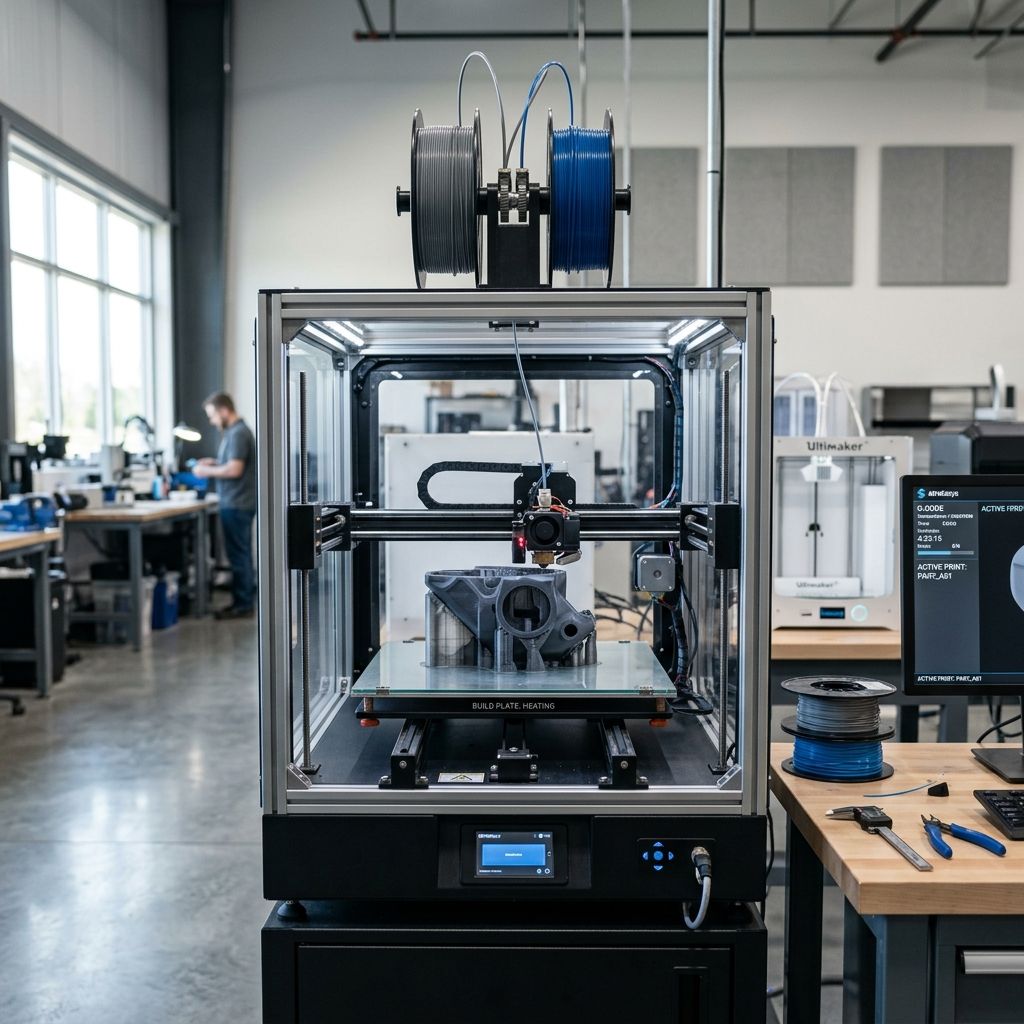
Elegoo Neptune 4 Pro & Max: Field Troubleshooting & Community Solutions
An unfiltered, floor-tested diagnostic manual for resolving the structural, thermomechanical, and firmware-induced failures plaguing Elegoo's high-speed bed slingers.
Field Highlights & Workshop Toolkit
The Elegoo Neptune 4 Pro and Neptune 4 Max are capable of incredible volumetric flow rates and rapid travel speeds. However, out-of-the-box Klipper configurations, eccentric wheel wear, and thermal expansion on the massive 430mm Max bed present significant engineering hurdles. If you are struggling with poor layer adhesion, failing bed meshes, or mid-print pauses, utilize our 3D Printer Troubleshooting tool to rapidly isolate mechanical versus software root causes.
The Realities of High-Speed Bed Slinging
In my 20-plus years of running industrial print shops and custom CNC gantry systems, I have learned that physics always wins. When you push a heavy, heated build plate weighing over 2 kilograms back and forth at 250 mm/s, you are not just 3D printing; you are managing a massive reciprocating dynamic load. Elegoo advertised these machines as ultra-fast, plug-and-play Klipper workhorses. In reality, the Neptune 4 series especially the massive Neptune 4 Max requires systematic mechanical and electrical tuning to survive more than 100 hours of continuous runtime without dropping steps or throwing MCU exceptions.
Whether you are dealing with the dual-zone heating warp on the Neptune 4 Pro or the structural frame wobble on the Max, the issues are predictable, repeatable, and fixable. This technical guide breaks down the top three field failures we experience on the shop floor, explains the underlying physics of why these components fail under load, and outlines the precise workflows needed to correct them.
Failure 1: Bed Leveling Drift, Fluctuating Z-Offset, and Thermomechanical Warping
The absolute most common complaint on the floor is Z-offset drift. You run a perfect manual level, save your Klipper bed mesh, set your Z-offset, run a flawless 20-minute calibration print, and then 4 hours later, the nozzle either scrapes the PEI sheet or prints in mid-air. This is not a ghost in the machine; it is a direct consequence of thermal expansion, cheap POM V-roller wear, and poorly constrained bed mounting screws.
The Physics of Thermal Bed Warping
The Neptune 4 Max uses a massive 430x430mm aluminum build plate. The Neptune 4 Pro uses a smaller 225x225mm segmented dual-zone plate. When you heat an aluminum plate, it undergoes linear thermal expansion according to the following formula:
$$\Delta L = \alpha \cdot L_0 \cdot \Delta T$$
Where:
- $\Delta L$ is the change in length (or width).
- $\alpha$ is the Coefficient of Thermal Expansion of Aluminum (approximately $23 \times 10^{-6} \text{ K}^{-1}$).
- $L_0$ is the original dimension of the bed at room temp ($430 \text{ mm}$ for the Max).
- $\Delta T$ is the temperature differential (heating from a room temp of $20^\circ\text{C}$ to $60^\circ\text{C}$ for PLA, so $\Delta T = 40\text{ K}$).
Applying these values to the Neptune 4 Max bed:
$$\Delta L = (23 \times 10^{-6}) \times 430 \times 40 = 0.3956 \text{ mm}$$
A change of nearly $0.4\text{ mm}$ across the bed's profile may not sound like much to a construction worker, but to a 3D printing nozzle targeting a $0.2\text{ mm}$ first layer height, it is a chasm. If the bed is constrained tightly by the manual adjustment knobs at the corners, this lateral expansion has nowhere to go but up or down, causing the aluminum plate to buckle into a dome or bowl shape. Furthermore, the inductive bed probe on the print head is highly sensitive to ambient temperature. If you probe the bed while the hotend and bed are cold, and then print when they are hot, the probe's internal circuitry experiences thermal drift, throwing off your Z-offset by up to $0.15\text{ mm}$.
The Fix Workflow: Mechanical Stability and Screws-Tilt-Calculate
Do not rely on the stock hand-leveling screen UI. It is inaccurate and masks mechanical issues. Follow this industrial leveling routine to lock in your geometry:
- Thermal Stabilization (Soak): Never level a cold bed. Turn on both your hotend (set to $150^\circ\text{C}$) and your bed (set to your target printing temperature, e.g., $60^\circ\text{C}$ for PLA or $85^\circ\text{C}$ for PETG). Let the entire machine sit idle for at least 20 minutes. This allows the aluminum plate and the gantry frames to achieve thermal equilibrium (thermal soak).
- Eliminate POM Wheel Slop: Reach under the bed carriage and check the POM V-guide wheels. If you can spin any wheel freely with your index finger without moving the bed, it is too loose. Use the included wrench to adjust the eccentric nuts until all wheels are snug against the aluminum extrusion profiles. There should be zero vertical play (slop) and zero axial wobble, but the bed must slide smoothly without binding.
- Ditch the Stock Springs: The stock yellow steel springs are too soft for high-speed bed movement. Replace them with high-temp silicone columns (18mm height for the Pro, 25mm for the Max). Silicone does not deform under dynamic loads or vibrate loose during fast infills.
- Deploy Klipper's
SCREWS_TILT_CALCULATE: Bypass the handheld screen entirely. Access your Fluidd or Mainsail web interface, open yourprinter.cfgfile, and ensure the[screws_tilt_adjust]section is configured correctly for your model's screw coordinates. Run theSCREWS_TILT_CALCULATEcommand in the console. The inductive probe will measure the height directly above each bed screw and tell you exactly how many minutes to turn each knob (e.g., "CW 00:15" means turn clockwise 1/4 of a turn). Adjust until all screws show less than 0.02mm variance. - Set the Z-Offset with Paper & Live Babystepping: Run a standard
PROBE_CALIBRATEcommand. Use a standard sheet of 75 gsm paper. Lower the nozzle until there is a light, consistent drag. Save config. During the first layer of your next print, adjust the Z-offset in increments of 0.005mm via Fluidd to get a perfect squish. Save the state immediately.
PRO-TIP: If you are running the Neptune 4 Max, do not use a massive 11x11 bed mesh for small prints. It slows down your print start and wastes computing cycles. Use the Klipper adaptive mesh feature in your slicer. If you use Cura or OrcaSlicer, configure your start gcode to generate a dynamic mesh that only covers the actual boundary box of the model being printed.
Failure 2: "Timer too close" MCU Exceptions & Klipper Connection Drops
The second nightmare is the dreaded mid-print freeze accompanied by a "Lost connection to MCU" or "MCU 'mcu' shutdown: Timer too close" error. This is a classic software-hardware sync failure. Elegoo uses an MKS Pi clone mainboard running a proprietary, heavily modified branch of Klipper firmware. They stripped out standard components, locked down specific ports, and introduced severe memory leaks in the screen interface service (mini12864 or the Elegoo screen daemon).
Under heavy processing loads (high-density microstepping, input shaper calculations, and high travel speeds), the CPU on the mainboard gets bottlenecked. If the main board fails to send stepper instructions to the microcontroller unit (MCU) within a microsecond-level window, Klipper triggers a safety shutdown to prevent a runaway print. This is exacerbated by the incredibly poor quality of the stock EMMC reader and the cheap USB connectors used to link the mainboard to external drives.
Slicing and Firmware Calibration Reference
To prevent Klipper buffer overruns, your retraction speeds, acceleration profiles, and step generation must stay within the physical limits of the MCU. Check out our Cura Slicing Errors analysis for deeper insights into how incorrect retraction configurations and travel accelerations can overwhelm budget 32-bit controllers.
Re-Flashing to OpenNept4une (The Industrial Fix)
If you are tired of the stock firmware crashing during 30-hour prints, the permanent solution is to bypass Elegoo's buggy, modified Klipper build entirely and flash a clean, upstream open-source Debian image called OpenNept4une. This community-developed firmware replaces the locked-down Elegoo system with pure, unadulterated Klipper, Moonraker, and Mainsail/Fluidd. Here is how we execute this upgrade on the shop floor:
- Acquire an EMMC USB Adapter: You cannot flash the Neptune 4's onboard memory via a simple USB cable. You must purchase an MKS EMMC-USB adapter or a specialized card reader.
- Extract the EMMC Module: Power down the machine, unplug it, and remove the bottom metal cover of the printer. Carefully peel back the hot glue securing the small black EMMC module to the mainboard, and gently pop the module out of its dual-row connector.
- Flash the Clean OS: Insert the EMMC into your USB adapter and plug it into your computer. Download the latest OpenNept4une image. Use BalenaEtcher or Rufus to flash the image directly to the EMMC module.
- Reinstall and Configure: Re-seat the EMMC module onto the mainboard, securing it with a small dab of non-conductive hot glue or kapton tape. Reassemble the printer, plug in an ethernet cable or set up your Wi-Fi credentials via the configuration file on the boot partition, and power up.
- Calibrate Input Shaper & Pressure Advance: Because you are now running standard, upstream Klipper, you can easily mount an ADXL345 accelerometer to your toolhead to run precise resonance measurements. This eliminates ghosting and ringing at 200+ mm/s without stressing the stepper motors.
- Parameter: Default Stepper Current (Y-Axis) Stock Elegoo Config: 1.2A to 1.4A OpenNept4une / Safe Spec: 0.9A to 1.05A Impact: Reduces motor temp by 20°C; prevents skipped steps due to thermal binding.
- Parameter: Maximum Microstepping Stock Elegoo Config: 64 or 128 microsteps OpenNept4une / Safe Spec: 16 or 32 microsteps (interpolated) Impact: Significantly reduces MCU interrupt load; eliminates "Timer too close" errors.
- Parameter: USB Connection Baud Rate Stock Elegoo Config: 250000 bps OpenNept4une / Safe Spec: 250000 bps (with high-shielding cables) Impact: Stops sudden communication drops caused by EMF noise from the stepper cables.
Failure 3: Extruder Heat Creep, Gear Slop, and Proprietary Nozzle Clogging
The Neptune 4 Pro and Max utilize a dual-gear direct-drive extruder labeled the "Dual-Gear Direct Drive Extruder." While it has a decent gear ratio and solid grip, the overall design suffers from a critical thermal flaw: the heatsink fan is undersized, and the metal extruder housing acts as a thermal bridge. Over long print jobs, heat from the hotend radiator rises up into the extruder housing (heat creep), raising the temperature of the filament drive gears to over $55^\circ\text{C}$. This softens PLA or PETG before it ever enters the heatbreak, leading to flat spots on the filament, gear slippage, and an eventual total jam inside the PTFE liner.
Additionally, Elegoo opted for a semi-proprietary, ultra-long high-flow nozzle. It looks similar to a Volcano nozzle, but the thread length and overall dimensions are slightly different. Trying to fit standard Volcano nozzles into this hotend will lead to a loose seat, filament leaking through the heater block threads, and the disastrous "blob of death" encasing your entire print head.
The Physics of Heat Creep & Extruder Torque Loss
As the stepper motor on the direct drive extruder runs, it generates significant internal heat due to electrical resistance in its coils. The power dissipation (heat loss) in a stepper motor is given by:
$$P_{\text{loss}} = I^2 \cdot R$$
Where $I$ is the operating current and $R$ is the phase resistance. Out of the factory, Elegoo drives these compact pancake stepper motors at up to $1.2\text{A}$ of current. Because the motor is mounted directly to the aluminum extruder carriage, this heat is transferred directly to the filament drive gears. When printing PLA (which has a glass transition temperature $T_g$ of only $55^\circ\text{C}$ to $60^\circ\text{C}$), the gears easily warm the filament past its softening point. Once soft, the dual-gear drive teeth bite deep into the plastic, flattening it. The extruder loses its gripping torque, and the filament buckles inside the housing, grinding to a halt.
Compare this to other systems with isolated heatbreaks or superior cooling, such as the configurations evaluated in our Creality K1C and K2 Pro Calibration guide, and you realize how critical motor current management is to budget print heads.
Step-by-Step Extruder Overhaul and Thermal Management
If you are experiencing consistent under-extrusion or jams after 2 hours of printing, follow this shop-floor overhaul procedure:
- Drop the Extruder Motor Current: Open your web interface, find the
[tmc2209 extruder]block in yourprinter.cfg. Look for the linerun_current:. If it is set to 0.85A or higher, reduce it to 0.55A or 0.60A. This immediately drops the stepper motor operating temperature by up to $25^\circ\text{C}$ without sacrificing any feeding torque. - Thermal Paste Application: Disassemble the hotend assembly. Pull the bi-metal heatbreak out of the cooling block. Clean off any factory thermal residue. Apply a high-quality, high-temperature thermal paste (such as boron nitride or Arctic MX-4) only to the upper portion of the heatbreak that seats into the cooling block. Do not put paste on the hot side. This maximizes heat transfer from the heatbreak to the heatsink, keeping the cold-zone cold.
- Adjust the Tension Arm Correctly: The tension screw on the side of the extruder is often cranked tight from the factory. This flattens the filament. Back the screw out completely, then tighten it exactly 2 to 2.5 full turns. You want just enough tension to grip the filament without causing physical deformation.
- Hot-Tighten Your Nozzle: When replacing or tightening the proprietary Elegoo nozzle, always heat the hotend to at least $260^\circ\text{C}$. Use a socket wrench to hold the heater block in place while tightening the nozzle to 2.0 Nm of torque. Failing to hot-tighten will guarantee a filament leak that ruins your heater block cartridge and thermistor wiring.
Hardware Specifications and Tolerances
For shop managers running multiple Neptune 4 machines, keep this technical parameter card handy. These are our verified floor specs, which deviate significantly from the marketing brochures:
- Machine Component: Extruder Drive Gear Alignment Factory Spec: Visual Alignment Floor Tolerance: Max 0.1mm axial runout Remedy: Use shim washers if the dual gears do not mesh perfectly center-to-center.
- Machine Component: Frame Rigidity (Z-Axis Gantry) Factory Spec: No support struts (Max has struts) Floor Tolerance: Lead-screws must have <0.05mm runout Remedy: Adjust top bearing blocks; do not constrain Z-axis leadscrews tightly at the top.
- Machine Component: Bed Roller Tension Factory Spec: Hand tight Floor Tolerance: No flat spots; 0.02mm flat-spot limit Remedy: Inspect POM wheels monthly. Replace with polycarbonate or linear rails if worn.
Comprehensive Troubleshooting Matrix
Use this matrix for rapid diagnostics on the shop floor when a machine down-state occurs. It covers everything from initial commissioning errors to long-term physical fatigue.
| Symptom | Root Cause | Verification Test | Field Action |
|---|---|---|---|
| First layer has rough ridges, nozzle digs into PEI sheet on left side only. | X-gantry is sagged or out of parallel with the base frame due to loose dual-Z sync belt. | Measure distance from the top frame to the X-axis metal plate on both sides using precision blocks. | Loosen the Z-axis sync belt at the top. Manually rotate one lead screw until both sides are perfectly level, then retighten the belt. |
| Sudden layer shifts on the Y-axis during fast prints (Neptune 4 Max). | Y-axis belt is slipping or the massive bed acceleration is causing motor overload. | Run a 100mm travel loop at 300 mm/s and listen for a loud "thump" (stalled stepper). | Reduce Y-axis maximum acceleration in Klipper from 5000 mm/s² to 2500 mm/s². Tension the Y belt to 90 Hz resonance. |
| Filament stops extruding after 1-2 hours; drive gears grind a flat spot. | Heat creep caused by high stepper current and poor heatbreak cooling. | Touch the extruder pancake motor during a print. If it burns your finger (>60°C), it is running too hot. | Reduce stepper current in printer.cfg to 0.55A. Replace the stock heatsink fan with a high-flow 4010 dual-ball bearing fan. |
| Persistent "Incomplete communication" error when plugging in USB drive. | Cheap stock USB drive causing file-system read latency on the internal Klipper bus. | Try to read the drive on a PC; check for bad sectors or slow read/write speeds. | Format a high-quality Sandisk USB drive to FAT32 (32KB allocation unit size) or print directly via the web interface over LAN. |
| The nozzle hits the printed model during rapid travel moves. | Z-hop is disabled, or the heavy bed is sagging due to loose eccentric wheels. | Check for physical play in the bed plate by lifting the corners. | Tighten eccentric nuts to eliminate play. Enable "Z-hop when retracted" (0.4mm height) in your slicer profile. |
Frequently Asked Questions
Why does my Neptune 4 lose its Z-offset every time I reboot the printer?
This is caused by a bug in the Elegoo stock firmware screen daemon, which overwrites the [gcode_macro G28] behavior and fails to properly load the saved bed mesh or Z-offset value from save_variables.cfg. The permanent fix is updating to a clean open-source Klipper firmware like OpenNept4une, which handles Z-offset saves natively and correctly.
Can I use standard Volcano nozzles on the Neptune 4 series?
No, standard Volcano nozzles are approximately 2.5mm shorter than the proprietary high-flow nozzles used by Elegoo on the Neptune 4 series. Using a standard Volcano nozzle will prevent the silicone sock from fitting correctly and, more importantly, can cause filament to leak through the heater block threads, leading to catastrophic hotend encasement.
What belt tension frequency should I target for the Neptune 4 Max?
For the massive Y-axis bed carriage of the Max, target a belt tension frequency of 85 Hz to 95 Hz (measured using a guitar tuner app next to the belt span). Tuning them too tight will bind the motor shafts and wear out the bearings, while tuning them too loose will cause massive backlash and layer shifts.
How do I fix the loud, high-pitched screaming noise from the rear auxiliary fan bar?
The massive auxiliary cooling fan assembly contains four small, high-RPM 5015 blower fans that run on cheap sleeve bearings. They vibrate severely against the sheet metal bracket; either dampen the mounting bracket with silicone washers, reduce their speed in your slicer to a maximum of 40%, or remove the bar entirely and upgrade to a single high-quality 120mm quiet fan.
Critical Workshop Warning: The Gantry Alignment Trap
Never level your print bed until you have physically squared your X-gantry to the printer's top frame. Many technicians waste hours adjusting bed screws when the actual issue is a tilted X-gantry. Place two identical objects (such as two aluminum extrusion cuts or even two identical soda cans) under the left and right sides of the X-axis frame. Manually turn the Z-axis lead screws until the gantry rests perfectly flat on both objects. Tighten the top sync belt in this exact position. Only after this mechanical synchronization is complete should you run your bed leveling routines.
Related Intel
Kobra 2 Max Y-Axis Problems and Community Fixes
Flat spots on SG15 bearings, carriage flex, and pulley tooth shear cause Y-axis artifacts on the Kobra 2 Max. Fixes: lubricate rails, reduce acceleration, and check belt tension.
Fixing Kinematic Binding on RatRig V-Core 3.1
RatRig V-Core 3.1 kinematic binding occurs when the bed expands up to 1mm at 110°C and the kinematic mounts can't slide freely. Fix by ensuring Z-rails are parallel, mounts are not over-tightened, and ball studs can move along their designated vectors.
Sovol SV06 Extruder Overheating Fixes
Reduce the extruder stepper driver Vref voltage from the factory 0.85A to around 0.6A to prevent overheating and filament softening in the planetary gears. Also ensure proper heatbreak cooling.