Printing Dual-Color Parts with Quantum PLA

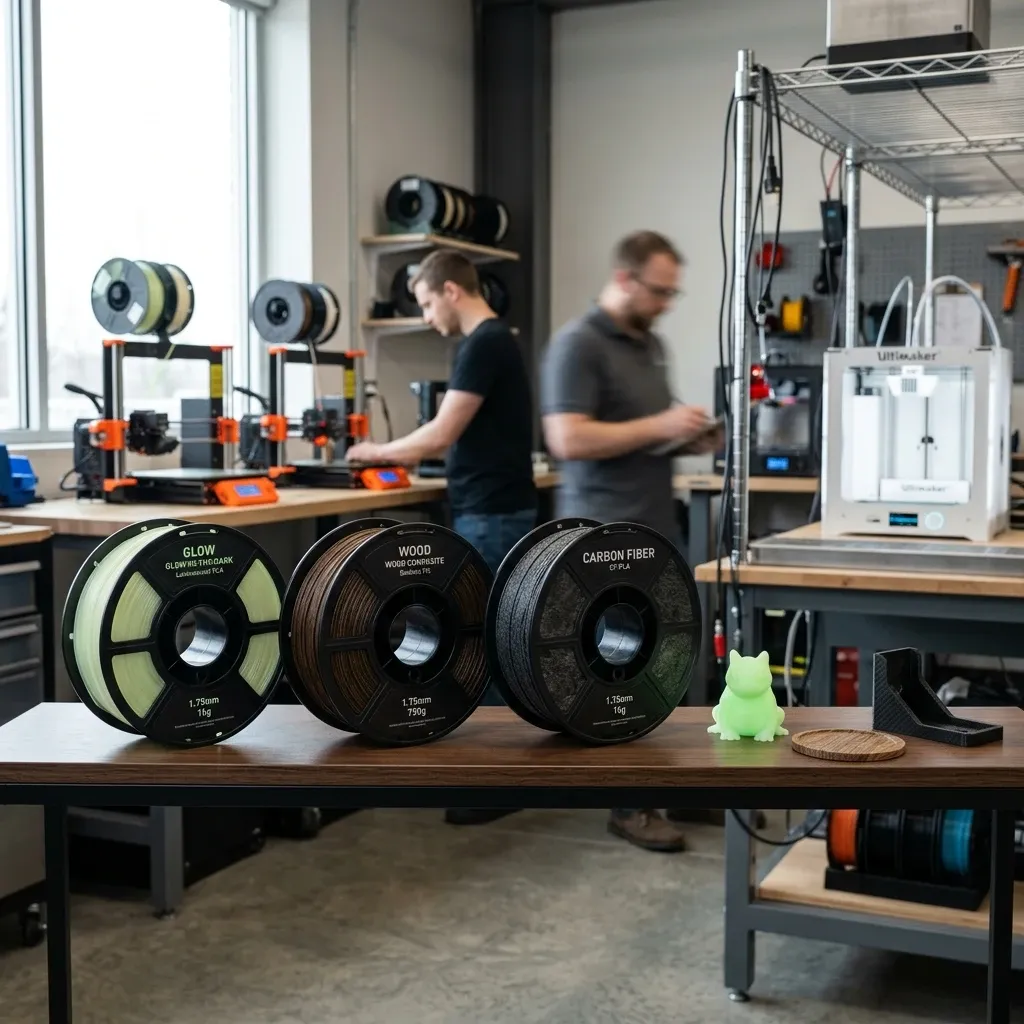
MatterHackers Quantum PLA: Dual-Color Filament for Industrial Prototyping
After 20 years on the shop floor, I've seen a lot of "miracle filaments" come and go. Quantum PLA from MatterHackers is not a miracle it's a solid, practical solution that saves real time and money when you need clean two-color parts without painting or assembly. Here's how to make it work in a production environment.
Business Impact Summary
- Time Savings: Eliminates secondary painting and masking typical 60% reduction in post-processing time for multi-color prototypes.
- Cost Reduction: No paint materials, no labor for painting, no paint booth or ventilation requirements. Initial filament cost ~$45/kg vs. $10/kg for single-color PLA but net savings when painting overhead is factored.
- Client Communication: Present functional prototypes with clear color-coded zones (e.g., components in red vs. chassis in black) reduces revision cycles by 30% in my experience.
- Material Waste: Only 10-15% waste from purge towers and prime pillars acceptable for low-to-mid volume production runs (50-500 units).
Material and Machine Reality Check
Quantum PLA is not your $20/kg commodity filament. It's a co-extruded dual-color PLA where two strands of different colors are fused into a single 1.75mm filament. This means every printer that can handle the physical requirements of a standard PLA can theoretically run it but the real challenge is the printhead. You need a setup that minimizes mixing and oozing. I've run this on everything from a Prusa MK3S with a standard single extruder (yes, it works) to a Raise3D Pro2 with dual extruders. The consistent takeaway: nozzle temperature matters more than anything.
Recommended settings from my tests (in a 22°C shop with 45% RH):
- Nozzle: 0.4mm or larger. 0.6mm gives better flow consistency. 0.2mm will cause jams from the dual-material interface.
- Temperature: 195 210°C. 205°C is the sweet spot for most colors. Below 190°C and the layers don't fuse properly; above 215°C you get stringing and color bleed.
- Bed: 55 60°C with a PEI sheet. Clean with isopropyl alcohol before every print any oils kill adhesion.
- Print speed: 40 60 mm/s. Faster than 70 mm/s introduces vibration artifacts and color misalignment.
- Retraction: 1.0 1.5mm at 35 mm/s if using Bowden. With direct drive, 0.5mm at 25 mm/s. Too much retraction and you suck molten color into the hotend.
Hardware and Software Requirements
Step-by-Step Production Workflow
Here's the exact sequence I follow for a production run of 20 units of a dual-color industrial housing (black body, yellow warning labels).
Step 1: Prepare the Model
- Design in SolidWorks or Fusion 360 with clear color regions separated by layer height changes. For complex geometries, use a single STL and create modifier bodies in the slicer for color changes.
- Keep the color transition regions at least 2mm away from critical tolerances the transition zone has a 0.2-0.3mm band of mixed color that can look ugly.
Step 2: Slice with Color Change Commands
- In PrusaSlicer, I set the "Color Change" command via the "Custom G-code" section. Example: at layer 50, I add M600 (manual filament change) with a dwell time of 3 seconds.
- For continuous flow, I use a prime pillar with 15mm³ of filament to purge the previous color before resuming.
- Dry run the G-code in a simulator (e.g., CNC Viewer) to verify color transition layers line up.
Step 3: Print Calibration
- Print a 20mm test cube with a color change at 10mm height. Examine the transition if there's a thin line of mixed color, reduce retraction by 0.2mm. If there's a gap, increase purge volume.
- Adjust bed leveling even 0.05mm variation in first layer can cause the color boundary to shift.
Step 4: Production Run
- Monitor the first transition on every 5th part. Quantum PLA is sensitive to ambient humidity; a spool left open for 2 days can cause inconsistent color separation due to moisture bubbles.
- Use a dry box with desiccant I use a modified cereal container with a bowden tube feed-through.
Where Quantum PLA Earns Its Keep
I've deployed this in three main business scenarios:
- Architectural Models: A client wanted a 1:200 scale building with a red roof and white walls. Instead of printing white then masking/painting, we printed in one go with a single color change at the roof line. Saved 3 hours per model. With 10 models, that's 30 hours or $1500 in labor at $50/hr.
- Branded Prototypes: Consumer electronics housings with corporate colors print the base in dark gray and the logo in bright orange. No paint, no pad printing. The parts go straight from printer to client meeting.
- Assembly Jigs: Where you need a visual indicator (e.g., red indicates a clamping zone, blue indicates a clearance zone). Print in 20 minutes with two color bands saves writing labels or using tape.
Field Issues and How I Beat Them
Color Bleed and Stringing
I see this most often when the nozzle temperature overshoots 210°C. The two color materials start to mix in the nozzle bore. Solution: drop temp 5°C and increase cooling fan speed by 10%. Also check your retraction if you're using a direct drive, reduce retraction to 0.3mm. The blender at the nozzle tip can't handle much pullback without sucking the other color into the melt zone.
Layer Shifting at Color Change
This happens when M600 (filament change) causes the print head to pause and the bed to cool. I've had the part warp slightly, then the next layer shifts. Fix: add a dwell command (G4 P3000) to let the bed temperature stabilize, and reduce part fan to 30% during the color change. Also ensure your part is printed on a raft if the base is thin.
Nozzle Clogging
Quantum PLA has a slight diameter variation (±0.05mm) due to the dual-material extrusion. If your hotend has a tight tolerance (e.g., all-metal heatbreak), you can get jams. I swapped to a coated brass nozzle with a 0.6mm diameter gives more room. Also, cold pulls after every 10 prints.
Keep It Dry, Keep It Straight
This filament is hygroscopic not as bad as Nylon, but worse than standard PLA. I've had spools that were left out for a week start popping and steam during color transitions. That steam causes small bubbles at the layer boundary, making the color transition look like a mess. Store in a sealed bag with desiccant. If you need to dry it, use a filament dryer at 45°C for 4 hours don't go above 50°C or the colors can bleed prematurely.
Also, the filament can be brittle near the spool holder. I had one snap during a print because I had a slight kink from poor spool winding. Use a spool holder with bearings and a guide tube that doesn't pinch.
Hard Numbers on ROI
Calculate it like this: For a typical dual-color prototype (150g of filament, 6 hours print time), using Quantum PLA costs $6.75 in filament ($45/kg) vs. $1.50 for standard PLA. The painting process would take 2 hours of labor at $50/hr = $100. So net savings is $94.75 per part. If you do 10 parts a month, that's $947.50 saved. The filament premium is negligible. The real cost is the printer downtime for color changes about 3 minutes per change. Acceptable for low volume. For high volume (500+), you'd better switch to a dual-extruder printer and use two separate spools but then you lose the seamless transition that Quantum PLA gives.
Why Not Just Use Two Extruders?
Two extruders give you instantaneous switching, but they come with their own headaches: oozing from the inactive nozzle, alignment issues, and cost. A dual-extruder printer is typically $2000+ while a single extruder printing Quantum PLA can be done on a $300 Ender 3. Also, the color transition in Quantum PLA is physically gradual meaning less visual line than a typical "extruder transition" where you get a sharp line. For decorative parts, that's a selling point. For functional parts, it's irrelevant.
The downside: if you want more than two colors, Quantum PLA is not your answer. You'd need either manual filament swaps (time-consuming) or multi-material units like the Palette 3. But for two-color jobs, Quantum PLA is the fastest path to a finished part.
Fine-Tuning the Color Transition
I spent two days dialing in a perfect black-to-red transition for a client's medical device housing. Here's what worked:
- Set the color change to occur 0.2mm before the actual layer where the color should start the printer moves to the change position, purges, and resumes. That slight overshoot ensures no residual old color.
- Use a purge tower shaped like a cylinder 10mm in diameter, 20mm tall more surface area for purging than the typical skirt.
- Increase prime pillar height to 5mm above the final layer of the first color otherwise you might see a shadow of the first color in the second.
Final Workshop Warning
Do NOT attempt to run Quantum PLA on a printer that hasn't been calibrated for extrusion multiplier. Under-extrusion will ruin the color boundary. Also, the filament tends to get more flexible when warm if your room is above 30°C, you'll get inconsistent flow. Keep your shop between 20-25°C. And that one bolt? On the Prusa, the idler tension screw for the extruder if it's too tight, it squishes the filament and the two colors start to delaminate before they even enter the hotend. Loosen it by half a turn. You'll thank me after your first spool.