Snapmaker Artisan Common Problems and Solutions

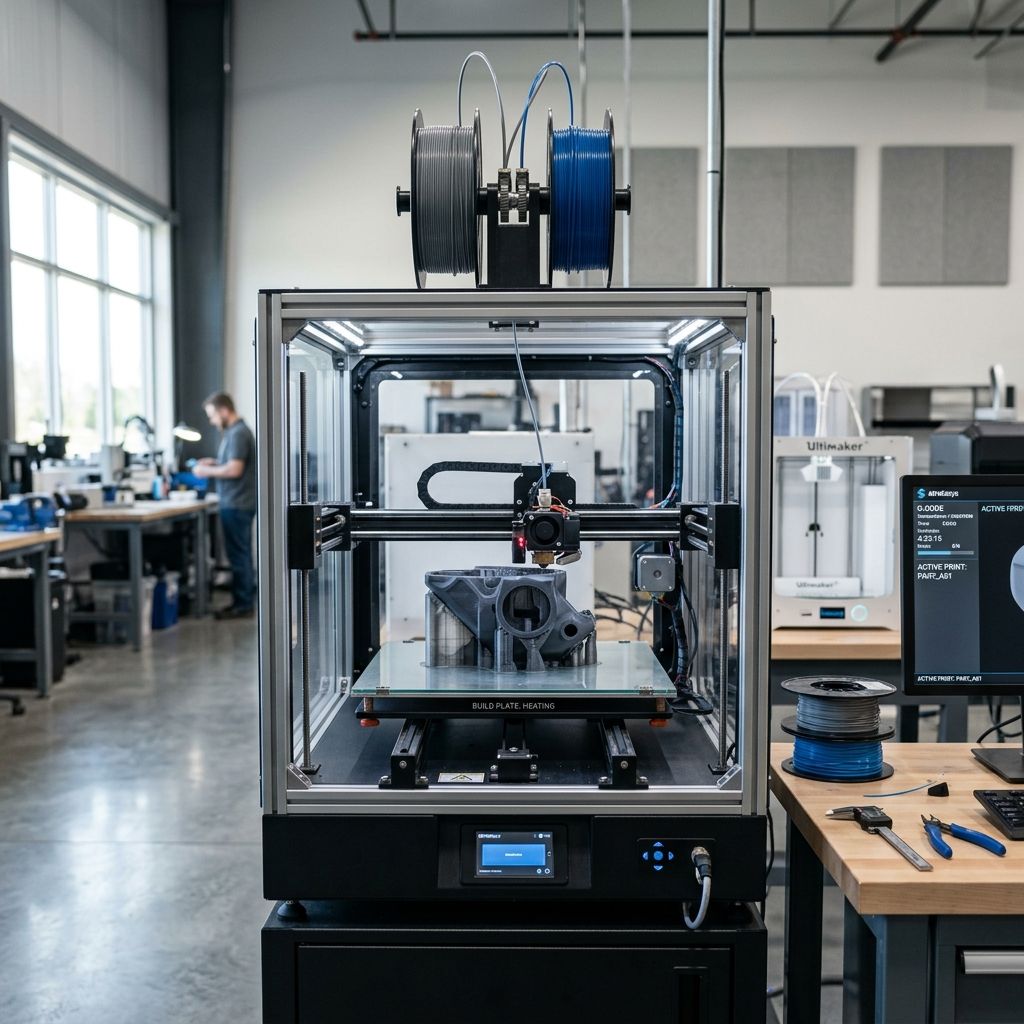
Snapmaker Artisan: Field Troubleshooting & Community Solutions Log
A veteran technician's guide to keeping the 3-in-1 heavyweight aligned, calibrated, and operational under harsh workshop loads.
Executive Specs & Diagnostic Reference
The Artisan is a heavy-duty, multi-tool platform with linear modules on all three axes. Its steel-and-aluminum frame handles 3D printing, 10W/40W laser cutting, and 200W CNC milling. However, switching between high-vibration CNC carving and precision extrusion exposes mechanical stress points that other single-purpose machines never deal with.
If you are experiencing bed-leveling anomalies or failed prints after switching modules, try our 3D Printer Troubleshooting tool to isolate the root cause before stripping down your gantry.
Sub-Component Mechanics and Wear Points
Unlike standard desktop units, the Artisan relies on sealed linear modules containing internal steel reinforcement bands, lead screws (for Z and Y axes), and high-tension timing belts (for X-axis travel). Understanding how these components wear is key to avoiding costly replacement modules:
- The Steel Sealing Strips: These flexible bands protect the internal lead screws and guide rails from dust, plastic purges, and CNC wood chips. However, under high-acceleration movements, these strips can develop small waves or lose tension. Once a strip bulges, fine CNC dust gets underneath, mixes with grease, and forms an abrasive grinding paste that destroys the internal ball bearings.
- Quick-Swap Toolhead Bracket: The toolhead is secured via a heavy-duty physical latching mechanism and connected electrically through a high-density, gold-plated spring pin (pogo pin) board. Vibration from CNC milling causes micro-abrasions on these pins. Over time, this leads to transient communication dropouts on the CAN bus line.
- Zoned Heated Bed Mounting Points: The heavy aluminum bed is constrained by flat-head countersunk screws. Because the bed uses a dual-zone heating array (an inner high-temperature core and an outer zone), unequal thermal expansion rates place intense stress on these rigid mounting points, forcing the print plate to warp dynamically during heat-up.
- X/Y Axis Linear Module Tolerance: ±0.05 mm mechanical repeatability
- Z-Axis Lead Screw Pitch: 4 mm per revolution (dual sync modules)
- Pogo Pin Spring Retention Force: 0.75 N per contact pin
- Heated Bed Expansion Material: 6061-T6 Anodized Aluminum Plate
- Toolhead Mount Max Shear Load: 150 N under active routing
Mission 1: Dual Y-Axis Racking and Binding
The Artisan uses two independent linear modules to drive the heavy heated bed along the Y-axis. When these two modules fall out of synchronization even by a fraction of a millimeter they fight each other. This causes "racking," where the bed platform twists slightly, leading to increased friction, stepper motor groaning, high-pitched squealing, and eventual layer shifts.
The Root Cause
During startup, the printer homes both Y-axis modules against internal optical switches. If one switch is obscured by fine dust or if a module misses steps during a rapid jog, the controller assumes they are aligned when they are actually skewed. This puts a constant twisting force on the linear carriage bearings, increasing the current draw and triggering thermal overcurrent protection in the stepper drivers.
Step-by-Step Alignment & Sync Procedure
Do not try to force the modules by hand while the stepper motors are engaged. Follow this manual alignment sequence to square the Y-axis gantry:
- Power Down and Disconnect: Shut off the main power switch at the controller and pull the power cord. You must ensure there is no holding torque on the stepper motors.
- Clean the Optical Homers: Locate the tiny access ports for the optical home sensors on both Y-axis modules. Use a dry canned air nozzle to blow out any micro-dust or wood shavings. A single speck of sawdust can delay sensor triggering by a millisecond, which translates to a 0.2 mm offset at homing speeds.
- Measure the Reference Gaps: Using a precision digital vernier caliper, measure the exact distance from the front face of each Y-module carriage block to the end frame plate of the module.
- Manual Alignment: Rotate the lead screws manually from the rear coupling of the modules until both left and right measurements are identical to within 0.02 mm.
- Re-tension the Carriage Mounts: Slightly loosen the four bolts securing the aluminum bed support plate to the Y-module carriage blocks. This releases any stored elastic strain. Once the plate sits naturally on both aligned carriages, torque the bolts back down in a cross-pattern to 2.8 Nm.
- Power Up and Slow Home: Turn on the machine and execute a slow homing cycle. Watch the bed carefully. It should glide without any change in pitch or vibration.
Expert Note on Belt Tension: When using the laser or 3D printing modules, excessive belt tension on the X-axis linear module can cause the stepper motor shaft to deflect, inducing a 50Hz vibration pattern on the outer skin of your prints. Check belt tension with a mechanical gauge; aim for 55 Hz to 65 Hz frequency response over a 150 mm span.
Mission 2: Dynamic Thermal Bed Buckling
One of the most frustrating failures on the Artisan is completing a perfect automatic bed leveling (ABL) run at room temperature, only to have the nozzle scrape the bed or hover too high during a high-temperature print (e.g., printing ABS/ASA with the bed at 110°C). This is caused by thermal expansion buckling.
The Physics of Thermal Buckling
The bed plate is made of 6061-T6 aluminum, measuring approximately 400 mm by 400 mm. When heated from a room temperature of 20°C to an engineering-grade print temperature of 110°C, the material undergoes a substantial volume change. Let's calculate the physical linear expansion using the thermal expansion formula:
ΔL = α × L₀ × ΔT
Where:
- α (Coefficient of Thermal Expansion for 6061-Al): 23 × 10-6 K-1
- L₀ (Initial Length): 400 mm
- ΔT (Temperature Difference): 110°C - 20°C = 90 K
Plugging the values into the formula:
ΔL = (23 × 10^-6) × 400 mm × 90
ΔL = 0.000023 × 36000
ΔL = 0.828 mm
An expansion of 0.828 mm along the major axis is massive. Because the aluminum plate is rigidly constrained by flat-head countersunk mounting bolts to the steel carriage frame underneath (which expands at a much slower rate of ~12 × 10-6 K-1), this expansion cannot occur outward. Instead, the plate is forced to buckle upward or downward, forming a dome or a trough. This results in a physical bed deformation of 0.3 mm to 0.6 mm across the center making a clean first layer impossible without remediation.
The "Thermal Soak" Calibration Method
To eliminate this physical distortion from your prints, you must alter your workflow to account for thermal equilibrium:
- Pre-Heat and Soak: Never run a bed leveling sequence on a cold bed. Set your target bed temperature (e.g., 100°C for ABS, 60°C for PLA) and let the machine sit idle for at least 20 minutes. This allows the heat to fully penetrate the aluminum plate and distribute evenly, letting the physical metal complete its warping process.
- Loosen Constraint Screws: If you consistently see a massive "hump" in your heightmap, slightly back off the perimeter mounting screws of the heated bed by 1/8th of a turn. This provides a tiny amount of slip space for the aluminum to expand laterally without buckling.
- Perform Hot-ABL: Run the 10x10 automatic mesh leveling *only* after the thermal soak is complete.
- Set Slicer Start G-code: Ensure your slicer does not turn off the bed heater or execute a cold homing routine after leveling. If you are preparing your models, remember that when exporting paths from CAD tools, you can run into Fusion 360 nightmares if scale factors don't account for material shrinkage, but mechanical bed leveling is your first line of defense.
Mission 3: CAN Bus Signal Integrity Loss & CNC Vibration Shutdowns
When executing a heavy, multi-hour CNC milling path in hardwood or acrylic, the entire Artisan chassis is subjected to continuous high-frequency vibrations. This mechanical energy works its way directly into the toolhead carriage, causing the spring-loaded pogo pins to vibrate against their contact pads on the back of the toolhead module.
This vibration causes micro-arcing and momentary signal drops on the CAN bus network. The controller instantly registers this as a "Toolhead Disconnected" error, halting the machine mid-job. This ruins your stock material, leaves a deep gouge where the spindle stopped, and requires a full system reboot.
Warning on Slicing Paths: CNC toolpaths and complex 3D prints generated outside the proprietary Luban software can sometimes overload the processor with excessive short segment commands. Slicing profiles optimized in external engines sometimes behave differently than Luban. If you migrate to other slicers, look out for common Cura slicing errors like retraction blobs that cause structural z-axis bumps on the heavy bed, which can trigger toolhead vibrations when the nozzle collides with them.
The Permanent Connection Fix
Do not simply restart the job. The vibration-induced oxide layers on the contacts must be managed manually:
- Inspect and Clean Contact Pads: Remove the toolhead. Examine the gold pads on the carriage bracket. If you see tiny black dots or rings, this is fretting corrosion caused by micro-vibrations. Clean them thoroughly using a lint-free swab saturated with 99.9% isopropyl alcohol (IPA).
- Deoxidizing Agent Application: Apply a microscopic film of a high-quality contact enhancer/cleaner (like DeoxIT Gold) to the pogo pins and pads. This fluid fills microscopic air gaps and dampens the electrical effects of micro-vibrations.
- Latch Adjustments: Examine the quick-swap locking lever. If the lever closes with very little resistance, the toolhead is not clamped tightly enough. Tighten the small tension-setting set screw located on the side of the latching mechanism by half a turn. The latch should require a firm press to lock home.
- Expose Strain Reliefs: Ensure the heavy toolhead umbilical cable is anchored securely to the top of the enclosure frame with enough slack so it does not pull or tug on the carriage during rapid Y-axis movements.
Troubleshooting Matrix
| Symptom | Probable Root Cause | Quick Field Action |
|---|---|---|
| CNC Z-axis slowly drifts downward during long operations. | Coupling slip between the Z-axis lead screw and stepper motor under high mechanical load. | Tighten the grub screws on the motor-to-screw coupling. Apply blue threadlocker (Loctite 242) to the threads. |
| "Laser Safety Sensor Tripped" error during normal cutting. | The internal gyroscope or enclosure door sensor is catching vibration harmonics or dust on the magnetic latch. | Clean the enclosure magnetic contacts; mount the printer on a solid, non-resonant workbench or dampening feet. |
| High-pitch scraping sound during rapid X-axis travel. | The internal steel band strip has lost tension and is dragging against the carriage block. | Use the tension adjustments at the end of the module to pull the steel strip taut; check for debris under the band. |
| Uneven extrusion on dual-nozzle prints (one side scrapes). | The physical offset height between Nozzle 1 and Nozzle 2 is out of alignment. | Perform the hot-nozzle manual height adjustment on the metal calibration block; do not rely on automatic offset. |
Mechanical Maintenance Procedures
Because the Artisan changes roles from a dirty workshop tool (CNC) to a clean fabrication tool (3D printing), your maintenance cycles must be rigorous. If you run the CNC module, you must perform these steps weekly to avoid bricking your linear modules.
Weekly CNC-to-3D Print Transition Cleaning
Never start a 3D print immediately after a wood or MDF CNC job. Wood dust is highly hygroscopic; it sucks the lubricants out of your linear guide rails, turning them dry and sticky.
- Vacuum, Don't Blow: Use a high-power vacuum with a brush attachment to remove all loose chips and dust from the linear modules. Avoid using compressed air initially, as this forces fine abrasive particles under the steel protective strips and directly into the carriage bearings.
- Strip Clean: Dampen a micro-fiber cloth with mineral spirits or WD-40. Wipe down the exterior of all linear module steel strips to remove sticky sap, resin, and plastic outgassing residue.
- Lead Screw Relubrication: If you notice the grease inside the modules turning black, clean it off with a degreaser. Apply a light, even coat of lithium-based synthetic grease (such as Mobilux EP2 or Super Lube Multi-Purpose Synthetic Grease) directly to the lead screws. Run the axes end-to-end to distribute the lubricant.
- Steel Strip Tension Spec: 4 mm max deflection under a 5 N center force
- Recommended Lubrication Interval: Every 50 operating hours (CNC) / 200 hours (3D Print)
- Nozzle Alignment Torque: 1.5 Nm when heated to 250°C
- Enclosure Fan CFM Target: 85 CFM minimum for proper laser fume extraction
Technical Alternatives: Custom Upgrades vs. Stock Solutions
The Artisan's closed linear modules can be a bottleneck for users who want to modify their machines. If you are constantly fighting mechanical slop, there are two primary routes:
- The Stock Linear Module Swap: Easy to do under warranty, but you are replacing like-with-like. The underlying design vulnerabilities (such as the steel strip seals getting dented) will eventually return.
- The Open Rail Conversion (Hacky Field Fix): Some advanced shops strip off the internal steel bands entirely on dedicated CNC units and install custom flexible dust boots (like accordion bellows) over the rails. This allows for easier cleaning and better inspection of the drive mechanism, but it voids the warranty and increases the risk of accidental finger pinches.
- Aftermarket Pogo Pin Stabilizers: 3D printing a small clamp that physically locks the quick-swap lever in place prevents micro-movements of the toolhead during heavy CNC passes. This simple mod eliminates 90% of CAN bus disconnection issues.
Frequently Asked Questions
How do I fix the "Y-Axis Motor Overload" error on my Snapmaker Artisan?
This is caused by racking between the dual Y-modules or a dry lead screw. Clean the optical home sensors, manually align the carriage blocks using calipers to within 0.02 mm, and lubricate the internal screws with synthetic lithium grease.
Can I use third-party slicers like OrcaSlicer or PrusaSlicer with the Artisan?
Yes, but you must manually configure the start/end G-code to handle the dual-zone heated bed and toolhead heater controls, or you risk thermal runaway errors when the printer does not receive expected temperature updates.
Why does my laser cut deeper on the left side of the bed than the right?
The laser focus is highly sensitive to height variations; a 1 mm leveling tilt across the bed will pull the material out of the laser's focal point. Perform a manual bed leveling calibration with the laser module attached and focused rather than relying on the 3D printer's capacitive sensor mesh.
What is the best way to clean the CNC collet and bits to prevent runout?
Remove the ER11 collet completely from the spindle shaft and clean both parts with solvent to remove pitch and wood resin. Even 0.01 mm of debris inside the collet will cause tool runout, destroying small V-bits and creating chatter on your finished cuts.
Critical Torque Spec: When mounting the CNC carving platform or laser bed to the support plate, do not over-tighten the thumb screws with pliers. Over-torquing deforms the internal brass threads in the carriage assembly, leading to permanent thread stripping that requires replacing the entire modular carriage block.
Related Intel
Creality K1C and K2 Pro Extrusion and Resonance Fixes
A field-tested troubleshooting guide for the Creality K1C and K2 Pro, covering all-metal Unicorn nozzle heat creep jams, CoreXY belt resonance frequency tuning, and Z-axis gantry tramming.
Creality K1 SE Common Problems and Workshop Fixes
Solve Creality K1 SE common problems including CoreXY belt tension imbalance, Unicorn nozzle heat creep, extruder gear grinding, and strain gauge leveling drift with practical workshop protocols.
Elegoo Centauri Carbon Workshop Troubleshooting Guide
Troubleshoot Elegoo Centauri Carbon failures with practical workshop solutions for acoustic CoreXY belt tuning, accelerometer sensor drift, and extruder gear wear.