Common SelfCAD Problems and Fixes

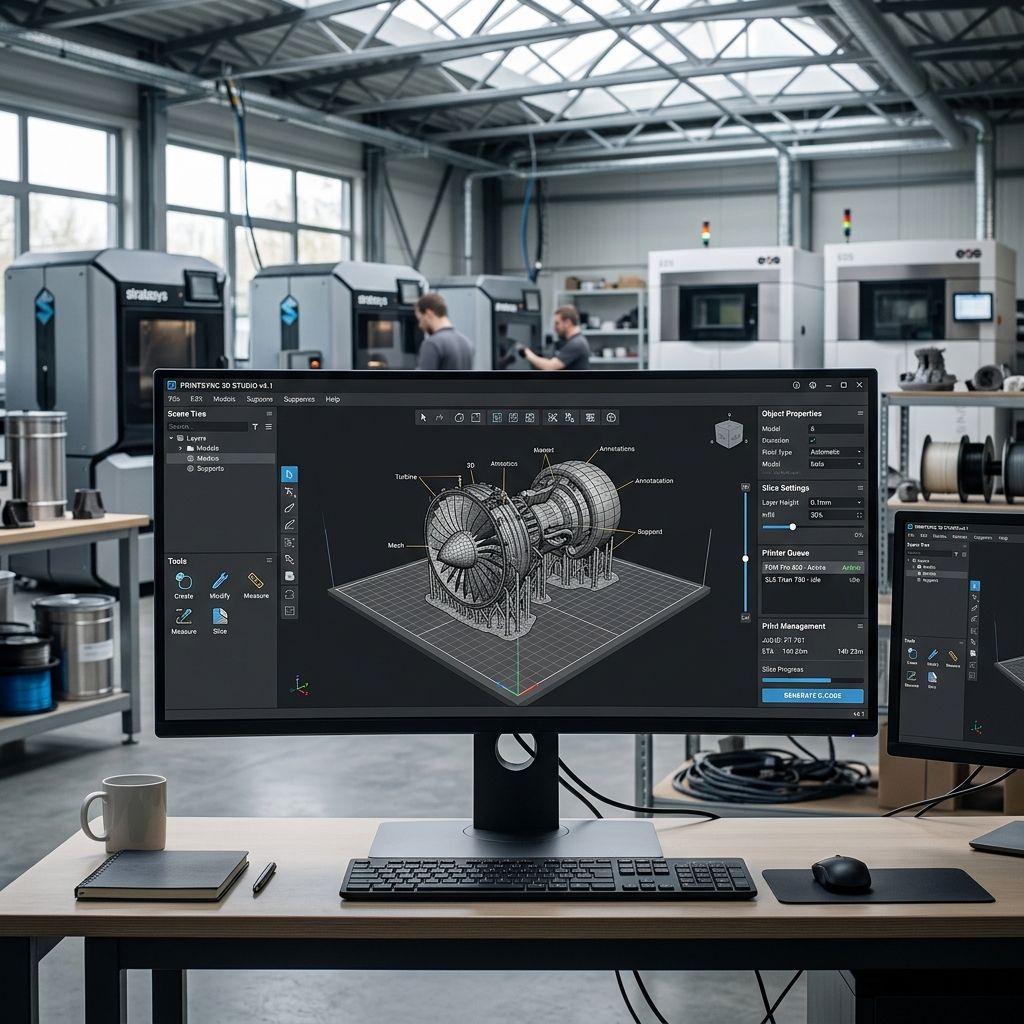
SelfCAD Field Log: Top 3 Workshop Nightmares & How I Fixed Them
Look, I don't care if it runs in a browser or on a supercomputer. If the G-code is trash, the print is trash. I've pulled more than a few all-nighters debugging prints that went sideways because of bad assumptions made in the digital design phase. SelfCAD is a solid piece of kit for what it is an accessible, all-in-one modeling and slicing environment. But I've been doing this long enough to know that convenience often comes with hidden tradeoffs. This is my field log of the top 3 nightmares I've encountered with SelfCAD, and the real-world fixes that actually work.
Tool Overview: The All-in-One Gamble
- Strengths: Low barrier to entry, decent sketch-to-slice pipeline, active community for learning, browser-based portability.
- Weaknesses: Browser memory bottlenecks, basic slicer profile library, mesh repair tools that work 70% of the time (and fail spectacularly the other 30%).
- Physics of Failure: It's a WebGL application. Complex geometry operations (boolean cuts, high-poly sculpting) lock the main thread. If you mash buttons, you queue commands, the browser heap fills up, and the tab crashes. You lose work.
- Verdict: Excellent for rapid prototyping, educational environments, and functional parts. The slicer is a proof-of-concept, not a production tool. Model here, slice elsewhere.
Nightmare #1: The Non-Manifold Meltdown
"I designed this bracket. It looks perfect on screen. I hit Auto-fix. Exported to STL. The slicer preview looks like a honeycomb covered in cobwebs. What the hell happened?" This is the single most common message I get from people using SelfCAD for functional prints.
The Physics of Failure: The slicer doesn't care about your feelings. It traces the outer contour of the mesh. If the geometry is non-manifold (open edges, inverted normals, internal faces, or bad intersections), the slicer's algorithm fails to define a closed volume. It either fills the interior completely (solid block), skips sections entirely (missing layers), or creates a chaotic toolpath that looks like abstract art. The layer adhesion will be garbage, and the part will fail under load.
Why Auto-Fix Fails: SelfCAD's Auto-fix Geometries tool is a blunt instrument. It's great for closing a single open edge loop. But if you have overlapping vertices from a boolean or mirror operation, Auto-fix often merges geometry indiscriminately. I've seen it turn a detailed screw thread into a smooth cylinder. It's a sledgehammer when you need a scalpel.
Field Fix Workflow (The Step-by-Step)
- Analyze First: Never skip
Tools -> 3D Print -> Analyze. Pay attention to the error count. "5 errors" is manageable. "500 errors" means you need to start over or do serious manual work. - Manual Inspection: Switch to
Edge Mode. Look for highlighted boundary edges. These are open loops. In my experience, zooming into every corner of the model is faster than trusting the auto-detect completely. - Selective Stitching: Use
Tools -> Stitches -> Add Stitchesfor small gaps. Click the two edges manually. This gives you control over how much geometry is created. For larger planar gaps,Tools -> Face -> Fill Holeis better. - Normals Check: Inverted normals will kill your print. The slicer sees the inside of the model and tries to print it. Use
Tools -> Normals -> Unify Normals. If that fails, manually select the bad faces and flip them. - Overlap Removal: This is the hidden killer. Use
Tools -> Optimize -> Merge Nearby Vertices. I use a threshold of 0.01mm. This cleans up the floating geometry that poisons the boolean operations. - Re-Analyze & Export: Run the analyzer again. Iterate until it's clean. Export as STL (Binary is fine, but use ASCII if you want to manually scan the file for issues in a text editor).
Personal Preference: I always run a final check using Blender's 3D Print Toolbox addon before slicing. SelfCAD's checker is good for a browser tool, but it misses edge cases. Don't get caught with your pants down.
Nightmare #2: The Integrated Slicer Disaster
"The print looks like a bird's nest. The supports fused to the model. The first layer is a joke. What went wrong?" The convenience of an integrated slicer is directly at odds with the granular control needed for reliable print production.
Field Reality: The SelfCAD slicer is a black box. It gives you basic controls: layer height, infill, support density. But it lacks the nuanced settings that separate a successful print from a failed one. Coasting, wipe, retraction tuning, ironing, tree supports, variable layer height these are standard in the industry, and they are missing from SelfCAD.
The Retraction Example: I was printing a small drone arm mount. The model was perfect. The built-in slicer profile for my Ender 3 had a retraction distance of 5mm. That's the default for a Bowden tube. But my setup had a direct drive extruder. The retraction was too high, causing clogging and stringing. I spent 2 hours debugging before I exported the STL to PrusaSlicer, set retraction to 1.5mm, and the print was flawless.
Troubleshooting Matrix
- Symptom: Supports fused to model. Field Fix: Export to PrusaSlicer and use Organic Supports or Support Enforcers. SelfCAD's support generation is aggressive and hard to tune.
- Symptom: Stringing between objects. Field Fix: The built-in retraction settings are coarse. Calibrate retraction towers in Cura or PrusaSlicer, then manually input the values into SelfCAD. Or just use those slicers.
- Symptom: First layer looks like abstract art. Field Fix: SelfCAD's bed leveling wizard is basic. I trust my printer's mesh bed leveling (ABL) more. I recommend using a dedicated slicer that integrates with your ABL system.
- Symptom: Consistent layer shifts or skipping. Field Fix: Check the G-code SelfCAD outputs. I've seen it omit
G92codes or use bad acceleration values. I don't know a single pro who uses the built-in slicer for production work.
The Hard Truth: Model in SelfCAD. Export as OBJ (if you want to preserve colors for multi-material) or STL (for standard geometry). Slice in PrusaSlicer, Cura, or Simplify3D. Print. Done. Don't tie your print quality to the convenience of an all-in-one package. The slicer is a gateway tool, not a destination.
Nightmare #3: The Browser Bottleneck & The Spinning Wheel of Death
"I was doing a boolean cut on a high-poly model. The UI locked up. I waited. Nothing. I clicked. It crashed. I lost 2 hours of work." This is the most infuriating issue with SelfCAD, and it's a physical limitation of the environment it runs in.
Physics of Failure: Modern browsers are sandboxed. SelfCAD runs on WebGL and JavaScript. It is limited to what the browser allocates to the tab. You can have 32GB of RAM in your machine, but if Chrome decides the tab only gets 4GB, you're stuck. Complex boolean operations and high-poly sculpting (above 50k faces) push the main thread into a corner. If you click repeatedly, you queue commands. The heap fills up. The tab dies.
Field Workflow for Survival
- Subdivision Management: This is the number one cause of crashes. "I don't care how smooth you need it. 3 subdivisions is the absolute max before you regret everything." Use subdivision levels sparingly. If you need a smooth surface, export a lower poly model and use smoothing in post-processing or in the slicer.
- Save Early, Save Often: I rebind Ctrl+S to muscle memory. But don't just save to the cloud. Export a local backup
.selfcadfile periodically. If the tab crashes, you lose everything in the current session. - The Hard Reset: If the UI starts feeling laggy or unresponsive, save your work, close the tab, and open a new one. This clears the WebGL context and frees up memory. It's the digital equivalent of blowing the dust out of an NES cartridge. It sounds stupid. It works.
- Tab Hygiene: Close your other tabs. Seriously. I've seen guys try to run SelfCAD, 15 YouTube tabs, a Spotify player, and a Teams call. The browser was on life support. SelfCAD needs resources. Give it some breathing room.
- Hardware Acceleration: Go into your browser settings and make sure Hardware Acceleration is ON. If your GPU isn't pulling weight for the WebGL rendering, you're going to have a bad time with complex scenes.
Long-Term Project Hygiene: For complex assemblies, I use separate SelfCAD files for each component. I model the base, the arm, the bracket, and the fasteners in individual files. Then I import them into a final assembly scene. This reduces the geometric complexity the software has to hold in memory at any given time. It's not ideal, but it works better than watching the spinning wheel of death.
Workshop Alert: The "Fix It In Post" Trap
I hear this constantly. "I'll just fix the geometry in the slicer." No. You won't. Slicers are not magic wands. They are path planners. If you have overlapping faces, inverted normals, or open edge loops, the slicer will either crash or generate a toolpath that looks like a Jackson Pollock painting. The GIGO principle (Garbage In, Garbage Out) is the most fundamental law of this trade.
Mantra: The slicer preview is not a suggestion. It is a prophecy. If it looks busted in the preview, it will print busted.
One final thing. If you are using SelfCAD for production parts, do yourself a favor and calibrate your printer profile in a dedicated slicer. I don't care if it's PrusaSlicer, Cura, or SuperSlicer. Measure your filament diameter. Run a temperature tower. Run a retraction tower. Do a flow calibration cube. Once you have those perfect values, you can try to input them into SelfCAD's printer profile. But honestly? I just export to STL and use PrusaSlicer every single time. The 30 seconds it takes to export and import saves me hours of debugging a failed print. Mind the torque.